Release Note
[07/28/2026] Release Notes: New AI Ticket Intake Agent, SuperOps and Huntress Templates
July 28, 2026

[New Feature] Auto-escalate ticket priority during a client's busy season (AI Ticket Triage)
Your highest-value clients get faster attention exactly when they need it most.
What's new: AI Ticket Triage can automatically raise a ticket one priority level when it belongs to a client on one of the agreement types your escalation rule covers and that client is in their busy season. Tickets already at the top priority stay there.
Why it helps: Paying clients get quicker response during their peak periods, without your team manually re-prioritizing.
How to use it: 1) In ConnectWise, add Busy Season Start Date and Busy Season End Date custom fields to your companies and fill them in. 2) Turn on the busy-season escalation rule via custom instruction. Priority automatically returns to normal once the busy season ends.
Applies to: ConnectWise (opt-in per tenant)
Learn more: https://support.mspbots.ai/portal/kb?id=50
[Enhancement] See the ticket summary, its priority, and a direct link in AI Sentiment Max alerts
Judge severity and jump straight to the ticket — no more searching your PSA.
What's new: Negative-sentiment notifications from AI Sentiment Max can now include the ticket summary, the ticket's priority at the time of the alert, and a clickable link to the ticket in your PSA.

Why it helps: Dispatchers and managers can act on alerts faster with the context right in the message.
How to use it: Add the new tokens (ticket summary, priority, ticket link) to your notification templates from the Dynamic Token dropdown.
Applies to: ConnectWise — tenants with AI Sentiment Max for ConnectWise Notes and an active AI credits subscription (Email body, Teams private chat, and Teams channel notifications)
Learn more: https://support.mspbots.ai/portal/kb?id=882 **Microsoft Teams - Public Channel-**Type the notification's Content. Click the Dynamic Token icon and select your preferred tokens to insert in the chat message.
[Enhancement] Drill down into multi-user target cards
Build team scorecards and still click through to the detail.
What's new: Clicking the value on a multi-user target card now opens the combined ticket details for every agent on the card, and you can filter by agent right inside the table.
Why it helps: No need to split each metric into a separate per-user card just to drill in.
How to use it: On by default — no setup needed. Click the value on any multi-user target card, then use the in-table filters/search to narrow down.
Applies to: HaloPSA, ConnectWise Manage, and Autotask
Learn more: https://support.mspbots.ai/portal/kb?id=317
[New Feature] Hide a widget's title for a cleaner dashboard
Stop long or truncated titles from cluttering your view.
What's new: You can now turn off a widget's top title on a dashboard. The setting is per dashboard, so the same widget can show its title on one board and hide it on another.

Why it helps: Cleaner, more presentable dashboards — especially on TV/presentation views and shared links.
How to use it: Open the widget's "⋯" menu on the dashboard and toggle "Show title" (on by default). Titles still show in dashboard edit mode so you can identify widgets.
Applies to: ConnectWise, Autotask, and HaloPSA — any widget with a "⋯" menu on a custom dashboard
[New AI App] AI Ticket Intake — your after-hours calls, answered and ticketed
A voice AI agent that picks up when your team is offline, and writes the ticket into your PSA before morning.
What's new: MSPbots now offers AI Ticket Intake, a voice AI agent for after-hours support calls. It answers the call, recognizes the caller against your PSA contacts, gathers the issue through a natural conversation, and creates a complete ticket in ConnectWise, Autotask, or HaloPSA — with the full transcript in internal notes and the call recording attached. When a caller asks to reach someone, the agent bridges the call to your on-call technician. Everything is configured in plain English through Skill Studio: describe how you want it to behave, and it does.
Why it helps: After-hours calls today go to voicemail, an answering service, or an engineer's cell phone — and the ticket still has to be written by hand the next morning. AI Ticket Intake removes that gap: every call is answered, every call becomes a structured ticket with full context, and nothing waits until someone gets to it. For most MSPs, it costs roughly half of a human answering service.
How to use it: AI Ticket Intake is currently available to a limited group of partners. Setup requires a dedicated phone number and PSA configuration, so onboarding is done with you directly — more details contact your CSM to see it on a live call and get your environment configured.
What's included:
- Caller ID matching — recognizes callers from your PSA contacts
- Smart greeting — natural and configurable for your company
- Automatic ticket creation — full PSA ticket with transcript in internal notes
- Call recording — every call recorded and available for replay
- Call escalation — when the caller asks for a person, the call is bridged to your on-call tech
- Skill Studio — configure behavior in plain English, no technical setup
Applies to: MSPs with ConnectWise, Autotask, or HaloPSA
Learn more:
[Enhancement] Get more AI credits on your plan — at the same price
More included credits every cycle, no price change and nothing for you to do.
What's new: We've increased the monthly credits included in the Basic, Starter, and Growth AI plans. Prices stay the same.
Why it helps: You get more value from the same subscription — more AI usage each cycle before you reach your plan's credit limit.
How to use it: On by default, no setup. If you're an existing customer, the new allocation applies automatically at the start of your next billing cycle. New subscriptions get it right away. You can check your current credit balance on the Billing page or in the AI Console.
Applies to: All AI paying customers on Basic, Starter, or Growth. (Scale plan credits are unchanged.)
Learn more: https://www.mspbots.ai/ai-credit-subscriptions
[New Integration] SuperOps RMM — Monitor your SuperOps environment from day one
Ready-to-use dashboards and widgets for SuperOps RMM — no setup required.
What's new: MSPBots now includes 4 pre-built template dashboards and 30 widgets for the SuperOps RMM integration. Covering device health, workstation and server status, and patch compliance — your team can start monitoring immediately after connecting SuperOps.
Why it helps: Before this release, SuperOps clients had to build their own dashboards and widgets from scratch after setting up the integration. These templates give you a fully built starting point so your team can focus on monitoring, not configuration.
How to use it: On by default, no setup needed. If you have the SuperOps RMM integration installed, open the Dashboard Library and look for the following templates:
Dashboards:
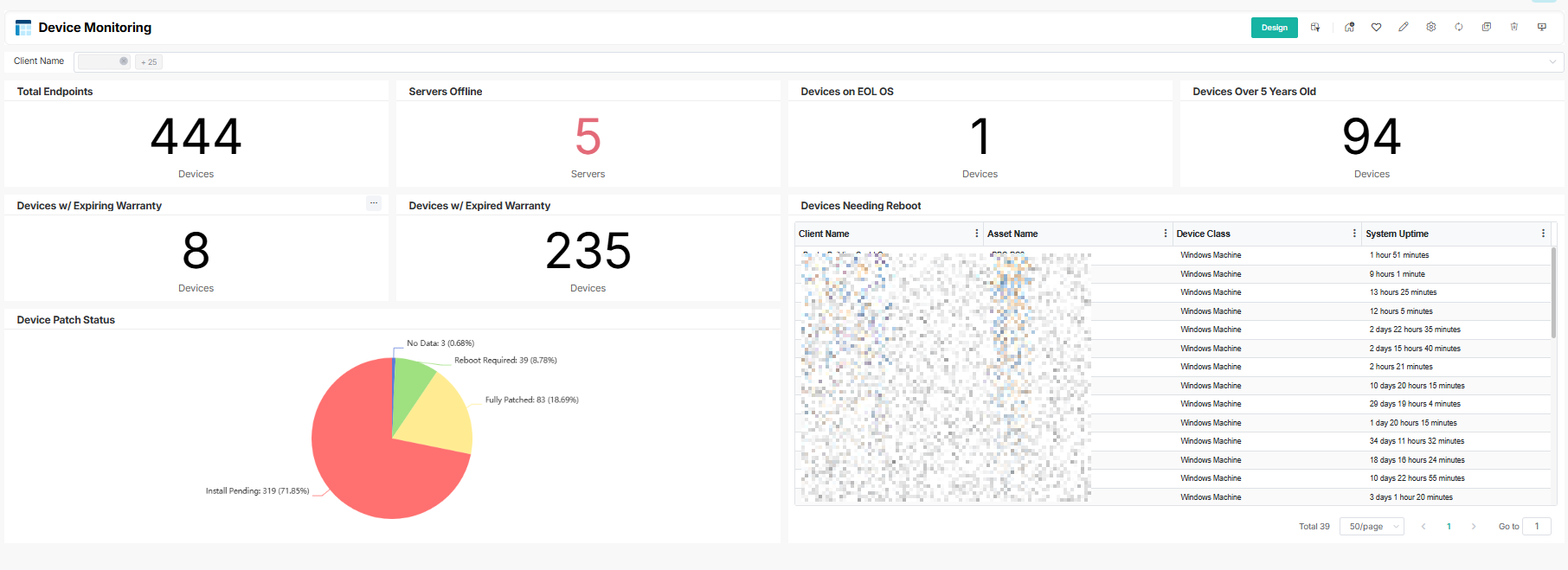
- Device Monitoring
- A single-pane view of all endpoints across your clients. Use it to track devices on end-of-life OS, machines past 5 years old, warranty status, patch compliance, and reboot-pending devices — filtered by client using the SuperOps slicer.
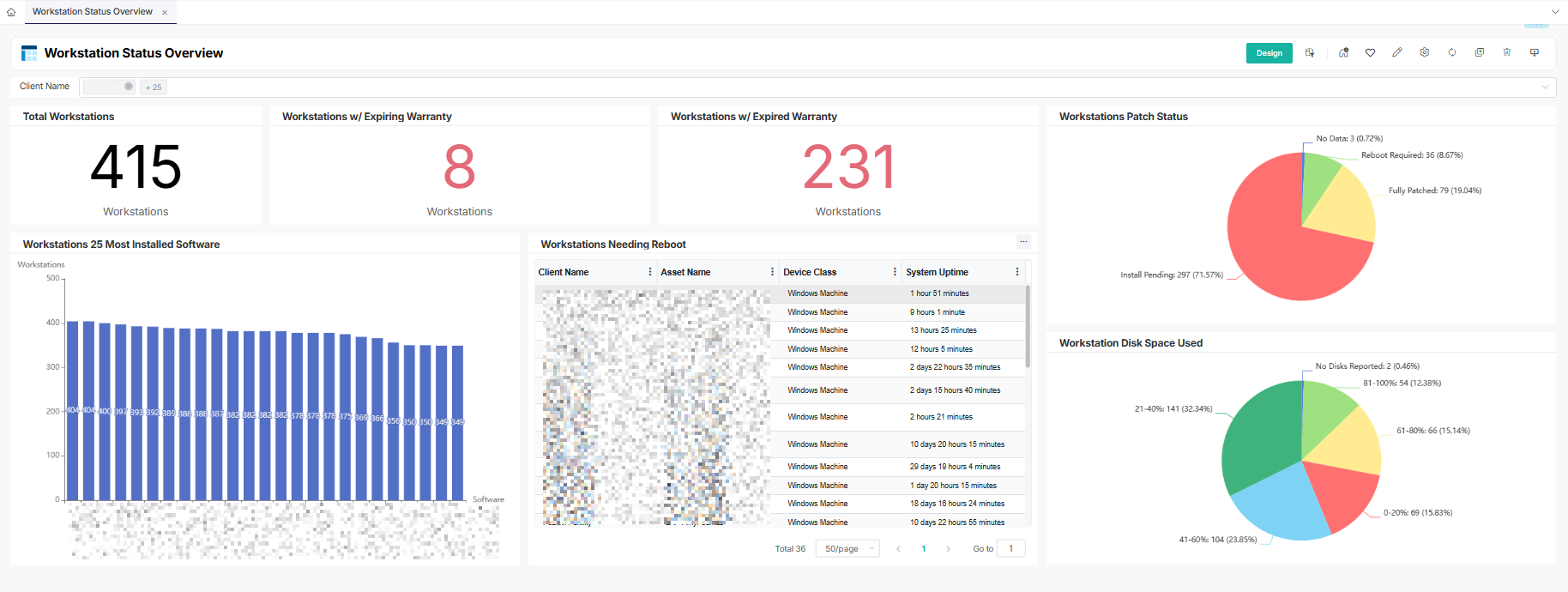
- Workstation Status Overview
- Focused view of workstation health across your client base. Use it to monitor patch status, reboot-pending workstations, top installed software, disk space, and warranty expiry across all workstations.
- Server Status Overview
- Dedicated server monitoring dashboard. Use it to track server patch status, disk usage, reboot-pending servers, top installed software, and warranty expiry across your server fleet.

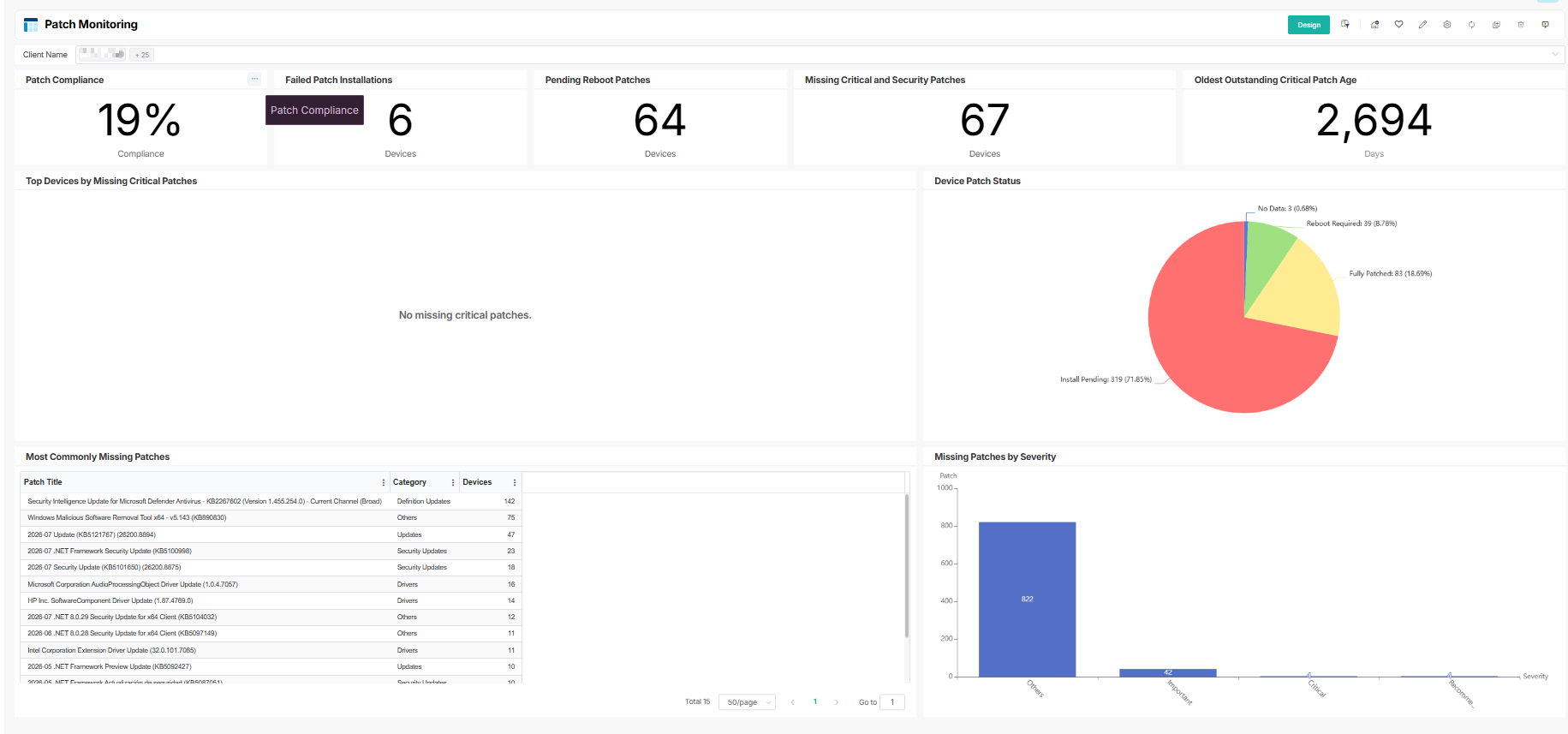
- Patch Compliance Monitoring
- Deep-dive into patch health across all clients. Use it to track overall patch compliance rate, devices with missing critical and security patches, failed installations, pending reboots, the oldest outstanding critical patch, and the most commonly missing patches by device and severity.
Applies to: Clients with SuperOps RMM integration
Integration:
https://support.mspbots.ai/portal/kb?id=2137
[New Template Assets] Huntress — 29 new template assets for deeper security visibility
Monitor incidents, agents, SIEM signals, AV protection, and more — all with ready-made Huntress templates.
What's new: MSPBots now includes 26 pre-built widgets and 3 dashboards for the Huntress integration. These assets cover the most important areas of your Huntress environment — from security incident tracking and SIEM monitoring to endpoint agent health and AV protection status.
Why it helps: Instead of building your own Huntress views, you can now start from polished, ready-to-use templates that surface the metrics your team monitors daily. This saves setup time and ensures consistent security visibility across all your clients.
How to use it: On by default, no setup needed. If you have the Huntress integration installed, all new widgets and dashboards are immediately available in your Template Asset library.
Dashboards:
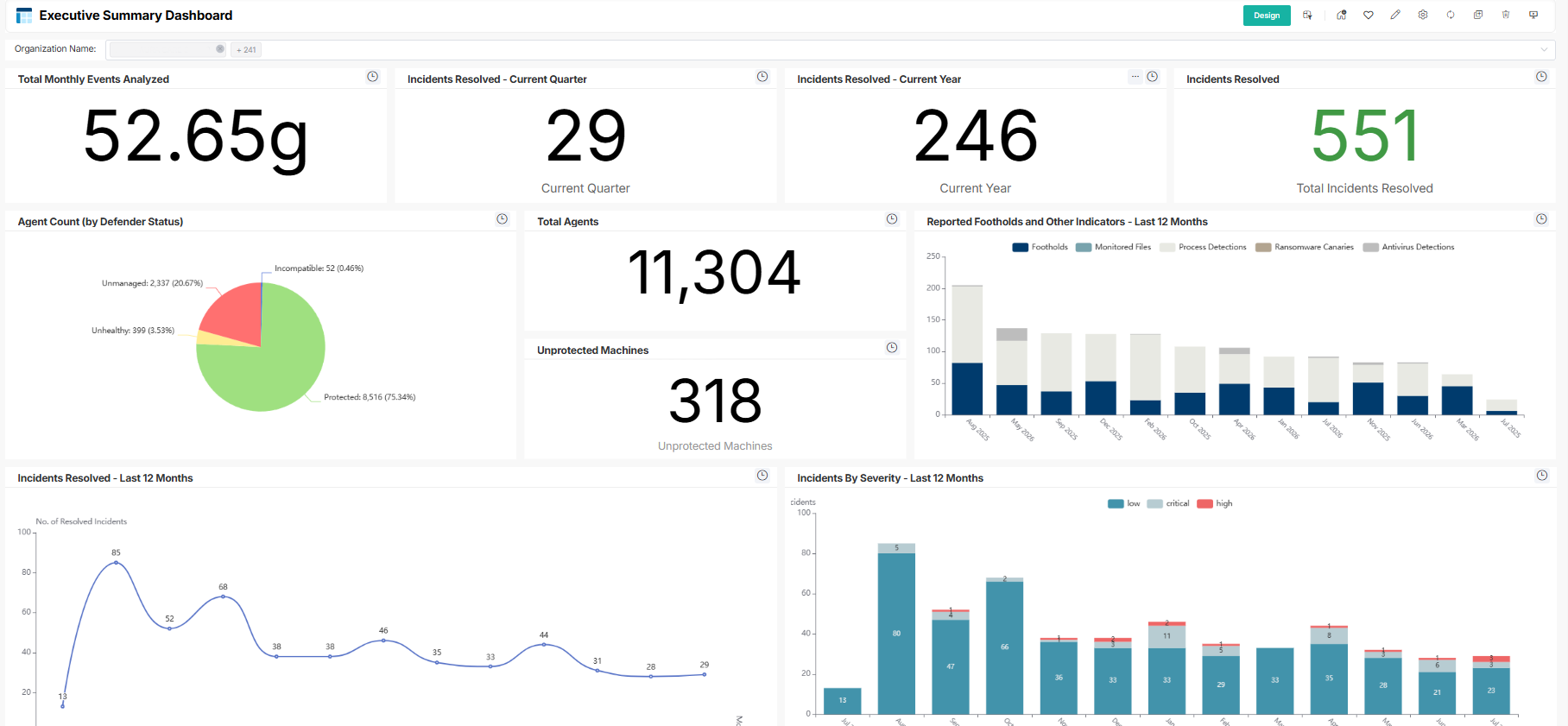
- Executive Summary Dashboard
- High-level security overview for QBRs and executive reporting. Use it to show clients a consolidated summary of agent coverage, incident activity, ITDR status, and SOC events — ideal for client-facing meetings.
- Agent Health and Compliance Dashboard
- Monitors the health and coverage of Huntress agents across your client base. Use it to identify unresponsive agents, stale devices, offline agents over 30 days, AV protection gaps, and Windows Defender status across all endpoints.

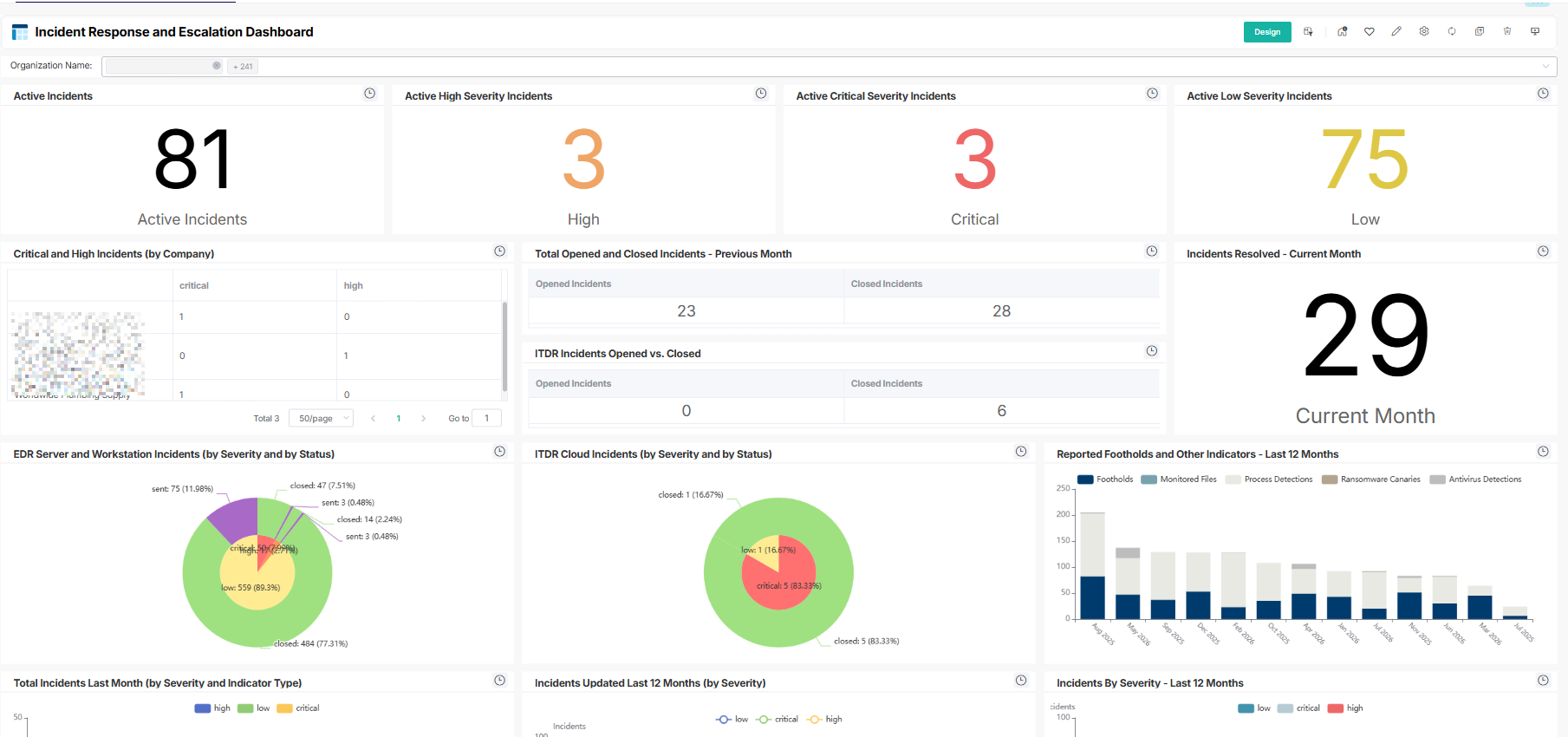
- Incident Response and Escalation Dashboard
- Tracks active and historical incidents across SIEM, ITDR, and EDR. Use it to monitor critical and high severity incidents, SIEM signals and log sources, incident trends over the last 12 months, and open items requiring follow-up.
- Applies to: Clients with Huntress integration
[New Integration] Slide Tech BCDR — Complete monitoring library available from day one
Full backup and device monitoring coverage for Slide Tech — datasets, dashboards, and widgets all included.
What's new: MSPBots now ships with a complete set of template assets for the Slide Tech BCDR integration. This includes 4 datasets, 3 dashboards, 37 widgets, and 1 slicer covering every key area of your Slide environment — from backup health and agent status to storage warnings, device compliance, and alert management.
Why it helps: Everything you need to monitor your Slide Tech environment is ready to go from day one. No manual widget building, no gap in visibility after setup — just open MSPBots and your Slide Tech data is already organized and actionable.
How to use it: On by default, no setup needed. If you have the Slide Tech BCDR integration installed, all templates are available immediately in your Dashboard Library, Widget Library, and Datasets.
Dashboards:
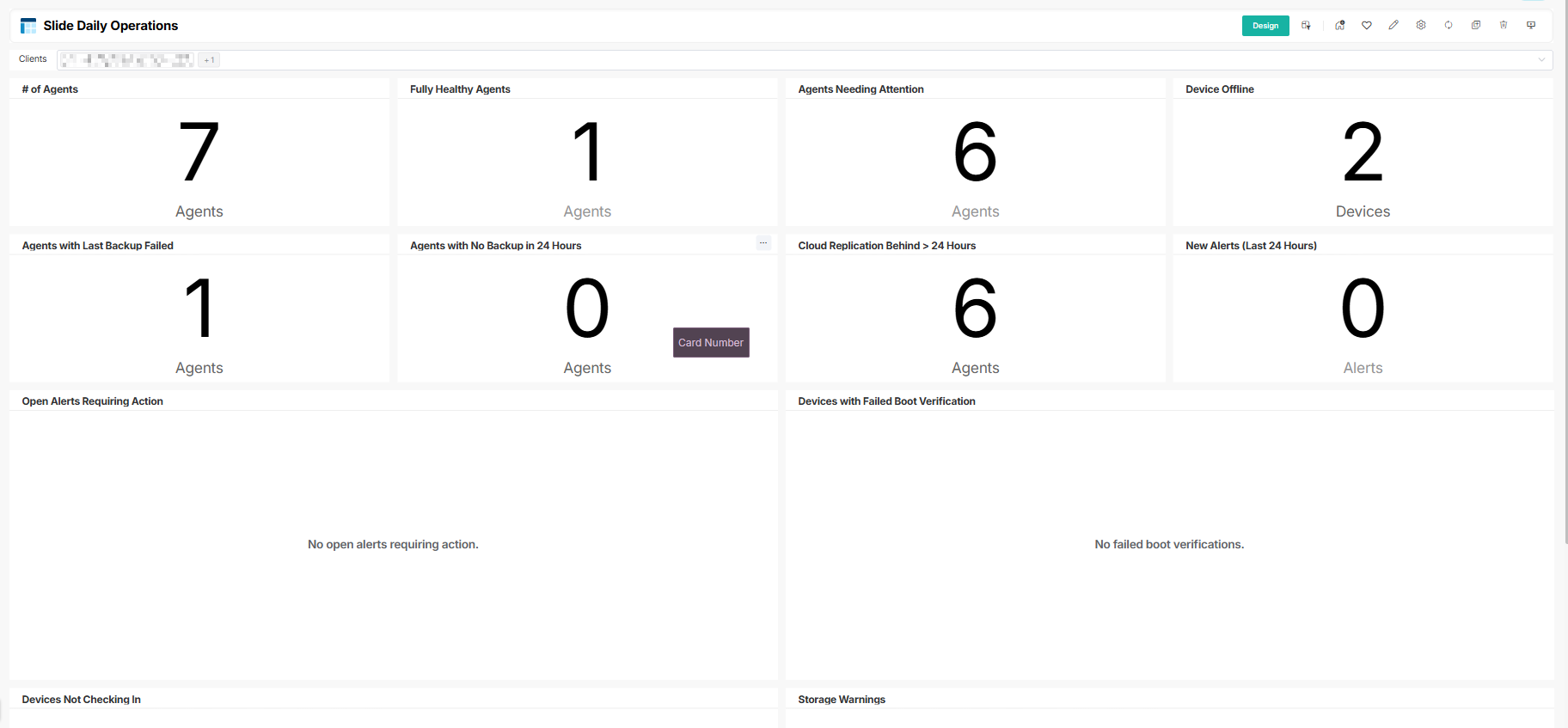
- Slide Daily Operations
- Your day-to-day backup operations view. Use it to monitor devices out of communication, offline devices, storage warnings, stale devices, open alerts requiring action, and recent backup failures — everything your team needs to start each day.
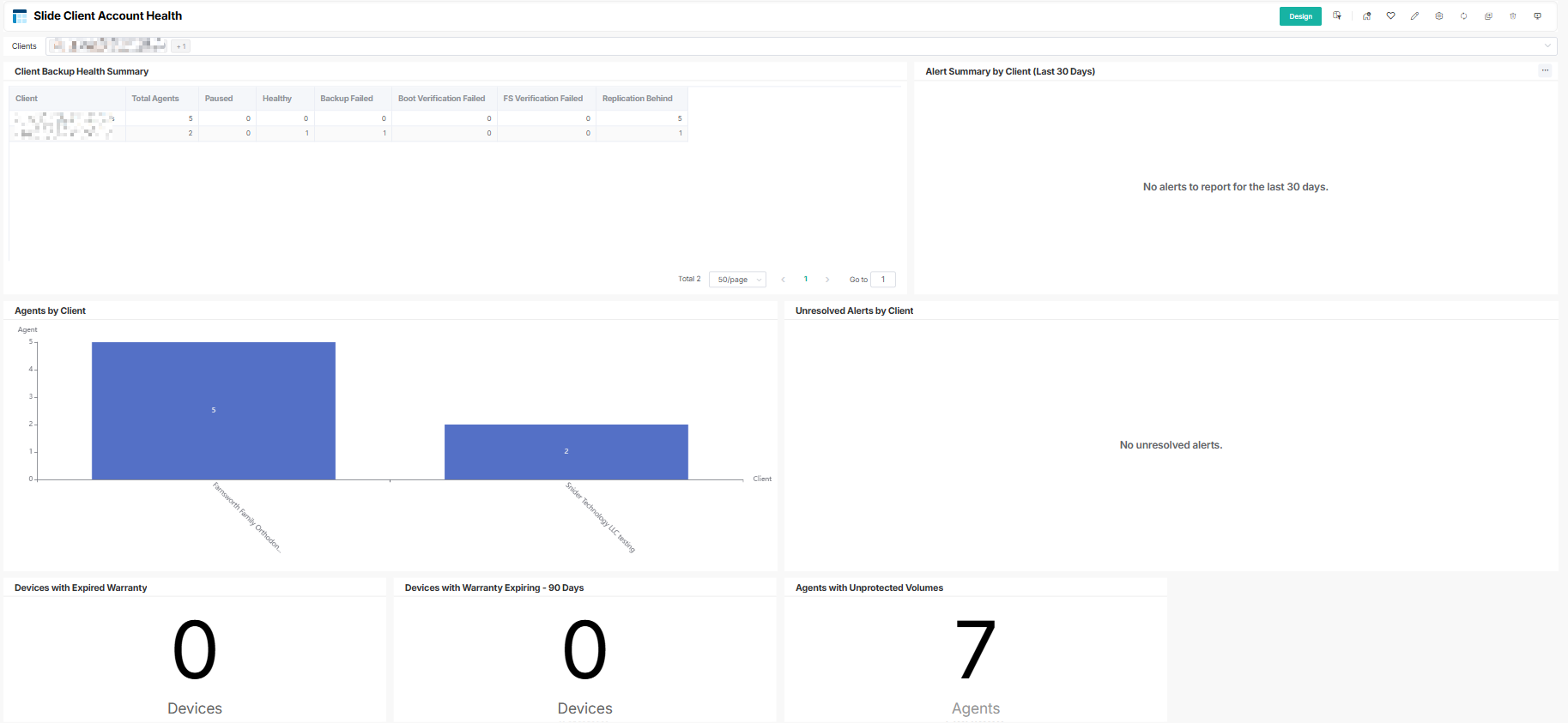
- Slide Client Account Health
- Per-client health summary across your entire Slide base. Use it to see backup health by client, unresolved alerts by client, devices with warranty concerns, agents with unprotected volumes, and overall client-level backup compliance — filtered by the Slide Clients slicer.
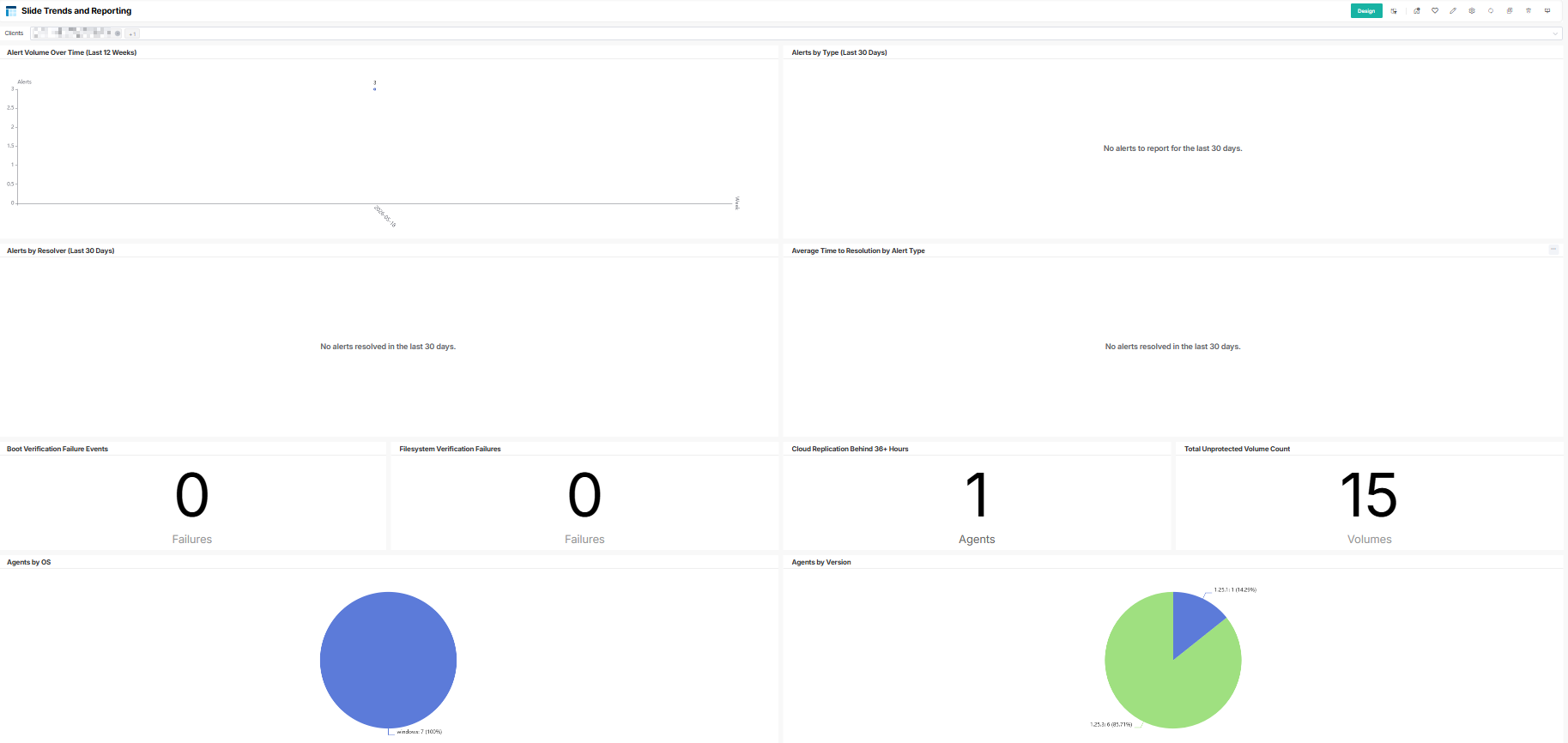
- Slide Trends & Reporting
- Historical trends and performance reporting for Slide Tech. Use it to track alert volume over time, average time to resolution by alert type, alerts by resolver, agent distribution by OS and version, and a 30-day alert summary by client.
Applies to: Clients with Slide Tech BCDR integration
Integration: https://support.mspbots.ai/portal/kb?id=2139
July 28, 2026