Release Note
[2026/08/24] Release Notes: Updated Ticket Triage Feedback Feature, A New Date Format Type
August 24, 2026
.png)

[New Feature] Turn your AI Ticket Triage feedback into instructions the AI follows
Thumbs-down corrections now become Custom Instructions in a few clicks.
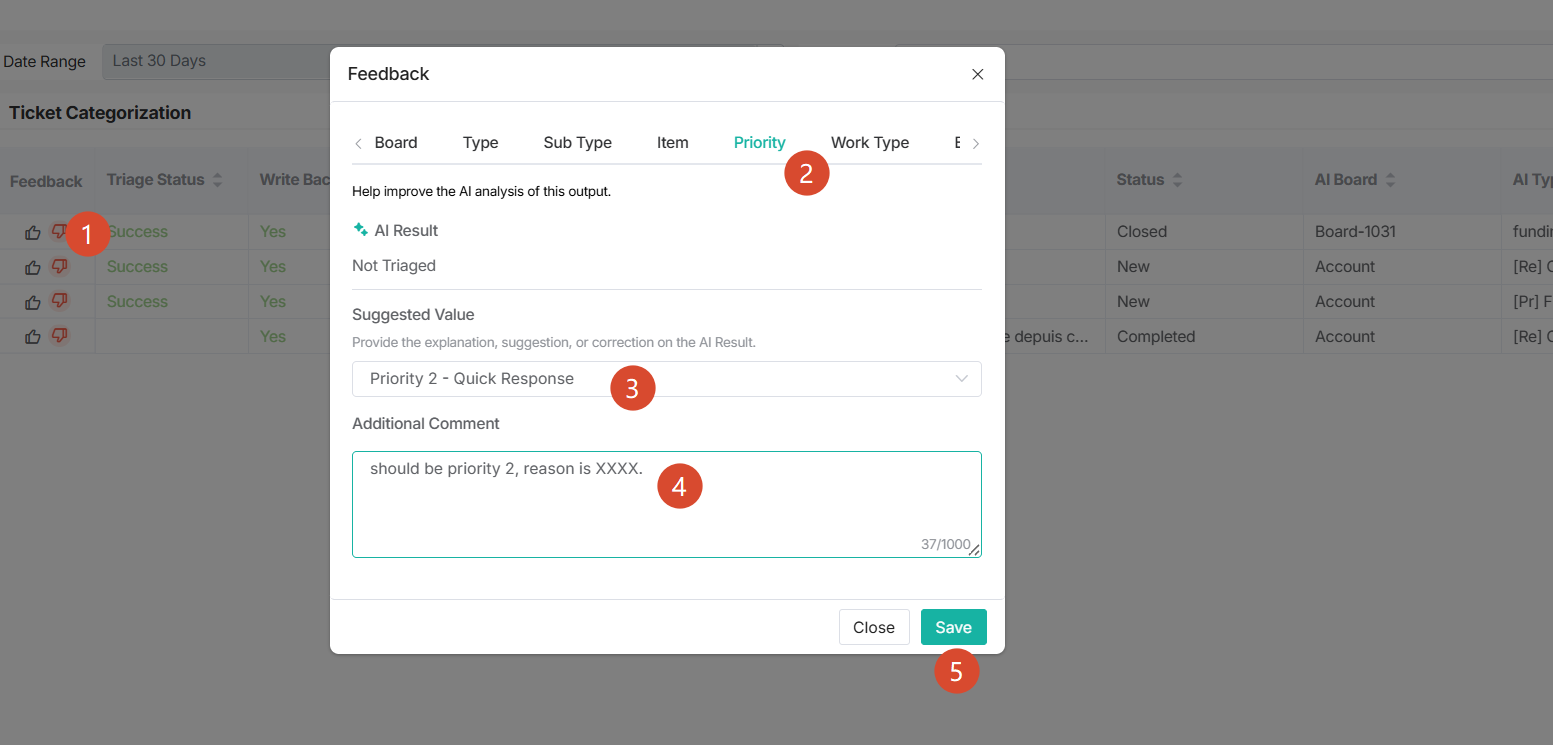
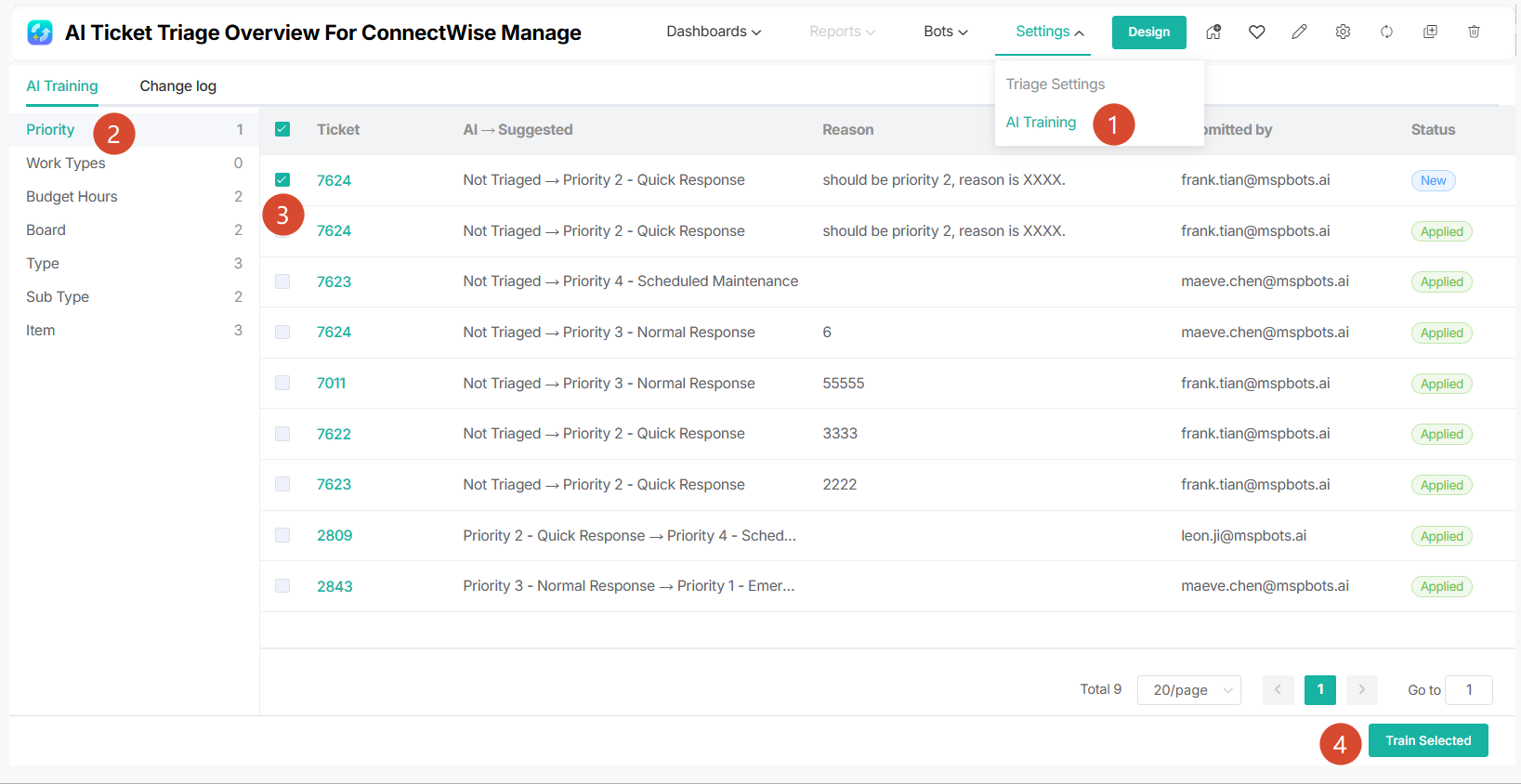
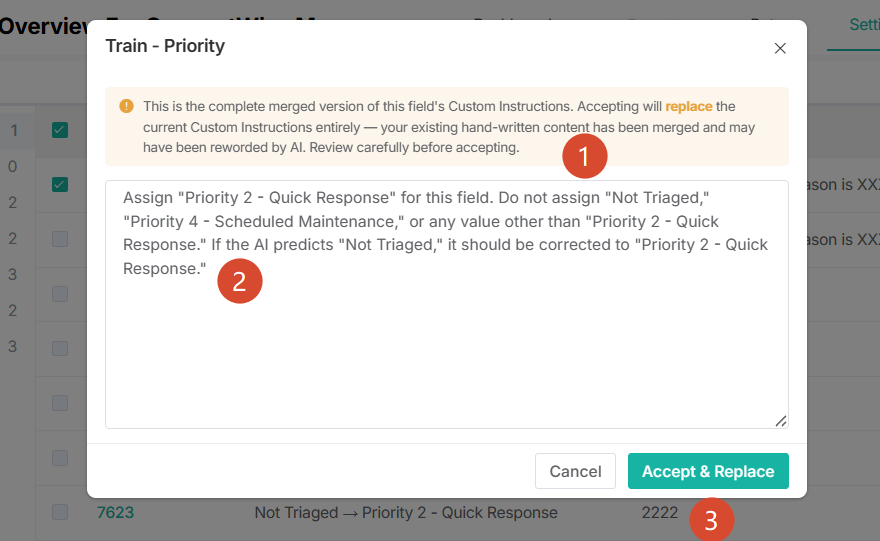
What's new: A new AI Training page collects the thumbs-down feedback your team submits on AI Ticket Triage classifications and groups it into one tab per field — Board, Type, Sub Type, Item, Priority, Work Type and Budget Hours on ConnectWise Manage; Queue, Issue Type, Sub Issue Type, Ticket Type, Priority, Billing Code and Estimated Hours on Autotask. Each tab shows a pending count, and each row shows the ticket, the reason, and who submitted it. Select the items you agree with, click Train selected, and MSPbots produces a complete new version of that field's Custom Instructions with those corrections folded into whatever you had already written. The text opens in an editable box so you can adjust it before Accept & Replace puts it live. Every accepted change is kept in a Change Log, when, who, which field, and the exact instruction text that was saved.
Why it helps: Before, a thumbs-down had no visible effect inside your tenant. Now the corrections your team already takes the time to submit are what improves the classification, and the Change Log answers "where did this instruction come from" months later.
How to use it:
- Click the thumbs-down & fill your feedback in.
- Open AI Training (AI Admin role required). Pick the tab for the field you want to improve, review the queued feedback, and click Train selected.
- Read the generated text carefully before accepting: it replaces that field's Custom Instructions entirely, and your existing wording is merged in and may be rephrased. Edit it if you want, then click Accept & Replace — or Cancel, which changes nothing.
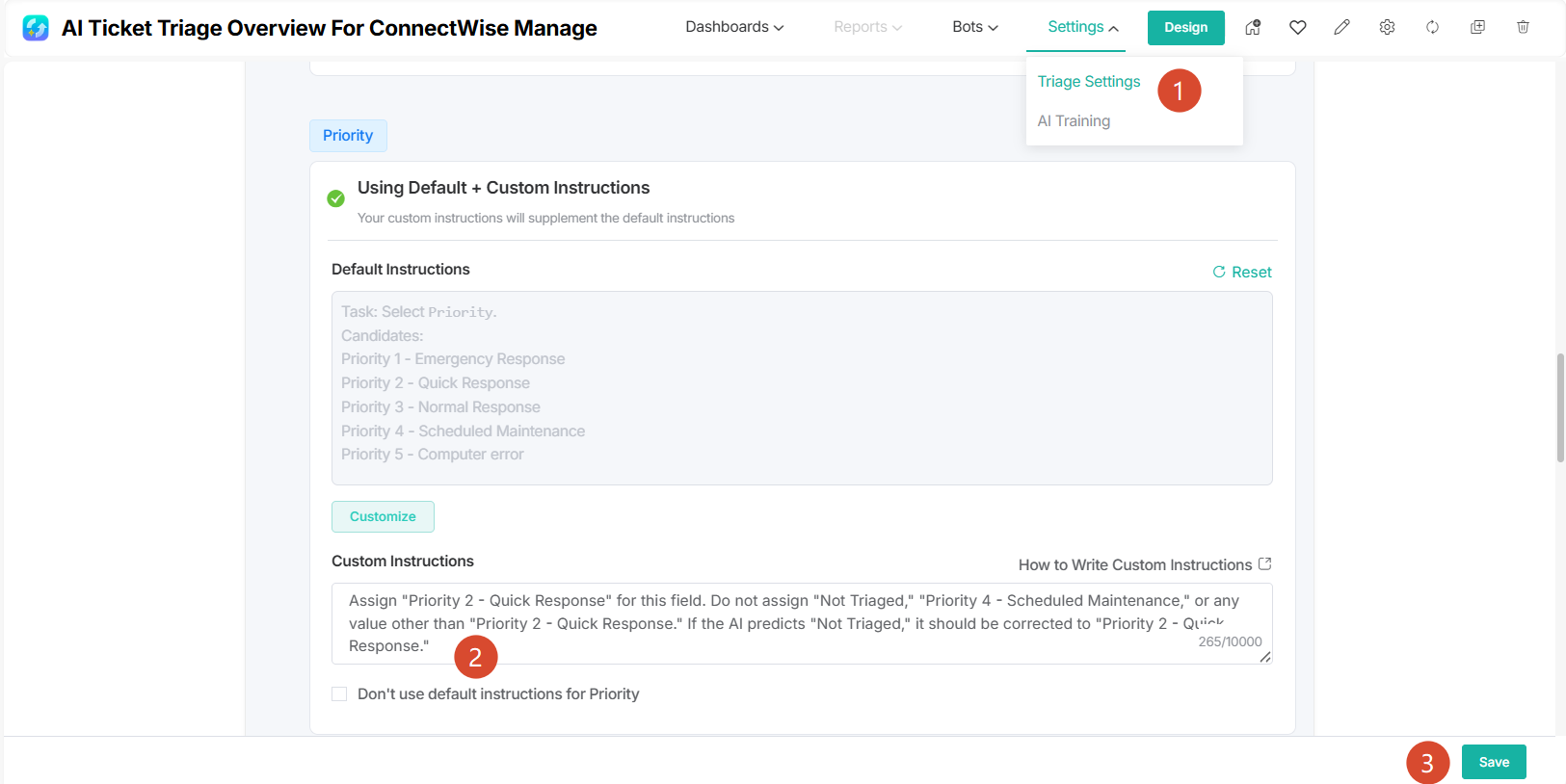
- If the field is currently switched off, or set to use Default instructions only, you will be asked to confirm those changes first. Training and accepting use no AI credits. Feedback submitted before this release does not appear in the queue.

Applies to: All customers using AI Ticket Triage for ticket categorization on ConnectWise Manage and Autotask. AI Admins get the AI Training page; AI Users continue submitting feedback exactly as before. The Triage Dashboard is unchanged.
Learn more:
[https://support.mspbots.ai/portal/kb?id=50]
[https://support.mspbots.ai/portal/kb?id=98]
[New Feature] Show the full week range in weekly column headers
Weekly columns now read 06-15-2026 – 06-21-2026 instead of a single date, so nobody mistakes a week for a day.
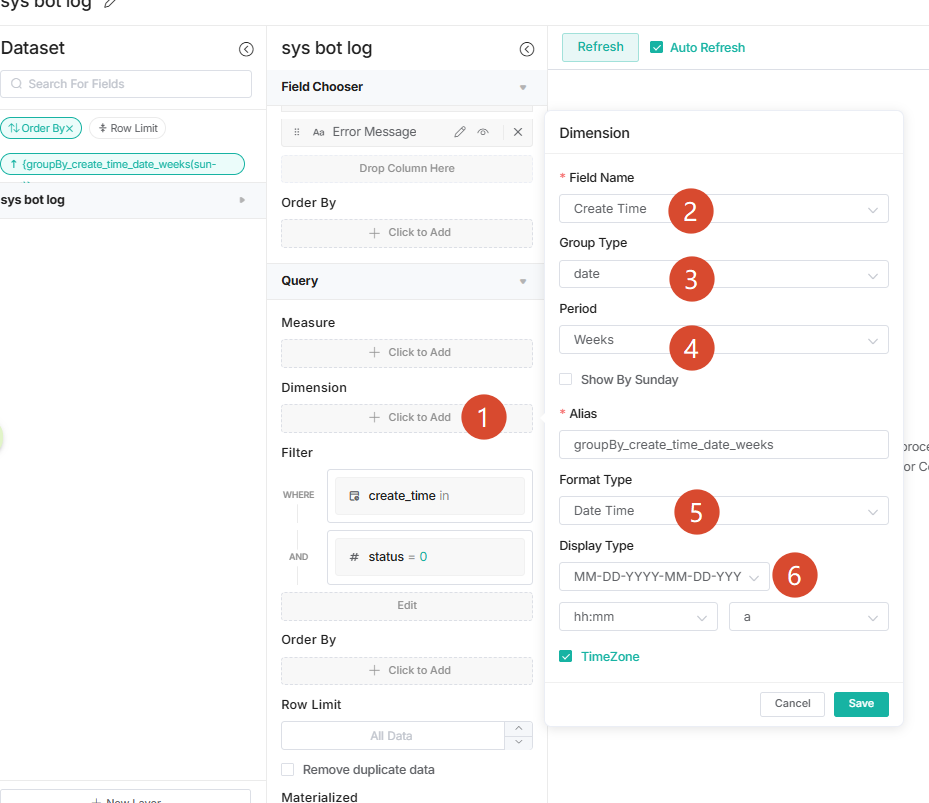
What's new: A new date Format Type — Week range (start – end) — for date dimensions grouped by week. Column headers show both ends of the week instead of only its start date. It works in both the classic and the new Widget Builder, on Table, Grid and Pivot headers, and PDF, Excel and CSV exports carry the same range text as the screen. The option appears when the dimension's Period is Weeks, Weeks (Sun-Sat) or Weeks (Sat-Fri), and the end date follows whichever week convention you chose. When the range includes the current, unfinished week, the header still shows that week in full. Only the label changes — the underlying date value is unchanged, so sorting, slicer filtering and drill-through return exactly what they did before.
Why it helps: A weekly column labelled with only its start date reads like a single day's number. On a 13-week scorecard that goes to a manager or a client, that turns into a misread of the data. A start-and-end label makes every column self-explanatory without the reader needing to know how the widget is grouped.
How to use it: In the Widget Builder, open Dataset → Dimension, set Period to Weeks, Weeks (Sun-Sat) or Weeks (Sat-Fri), then pick Date Time from Format Type, then Week range (start – end) from the Diaplay Type dropdown. Existing widgets keep their current format and look exactly as they do today until you change them yourself.
Applies to: All customers, on any PSA. Weekly groupings only — hourly, daily, monthly, quarterly and yearly formats are unchanged — and it applies to table-style headers rather than chart axes.
Learn more: [https://support.mspbots.ai/portal/kb?id=523]
[Enhancement] Get your next ticket on the first nt, even when some filters are empty
One nt now searches all of your filters in turn instead of stopping at an empty one.
What's new: In Round Robin mode, a single nt in Teams works through every filter assigned to you, in order, skipping the ones that currently have no tickets, and returns the first ticket it finds — together with the name of the filter it came from. While it searches you see one status line that updates in place, not a separate "no ticket" message for each empty filter. If none of your filters has a ticket, you get a single message saying so. Your place in the rotation is remembered between sessions and across days, so the next nt continues from where the last one stopped and every filter still gets its turn.
Why it helps: Each nt used to check only the one filter that was next in your rotation. If that filter was empty you got "no ticket" and had to send nt again before a ticket came back. One command is now enough, and seeing the source filter tells you straight away which queue the work came from.
How to use it: On by default, no setup, and no change to your filter configuration. Run nt in the MSPbots conversation in Teams the way you do today. Round Robin still rotates across your filters and separate filters stay separate, so work stays balanced across the pod.
Applies to: Customers using NextTicket for ConnectWise Manage in Round Robin mode with more than one filter assigned. Most Points users, and anyone with a single filter, see no change.
Learn more: [https://support.mspbots.ai/portal/kb?148 ]
[New Integration] CyberDrain CIPP — Multi-tenant Microsoft 365 management from day one
Ready-to-use dashboards for every managed Microsoft 365 tenant — no setup required.
What's new: MSPBots now includes a complete CyberDrain CIPP template pack — 6 datasets, 5 dashboards, and 42 widgets covering tenant, user, device, and license inventory, GDAP delegated-access health, license utilization, device compliance, and identity hygiene across all your managed Microsoft 365 tenants.
Why it helps: Instead of checking tenants one at a time, you get a single view across your whole Microsoft 365 estate — so licensing waste, expiring delegated access, non-compliant devices, and identity gaps surface without manual reporting.
How to use it: On by default, no setup needed. Once the CyberDrain CIPP integration is connected, all templates are available in your Dashboard Library and Widget Library.
Dashboards:
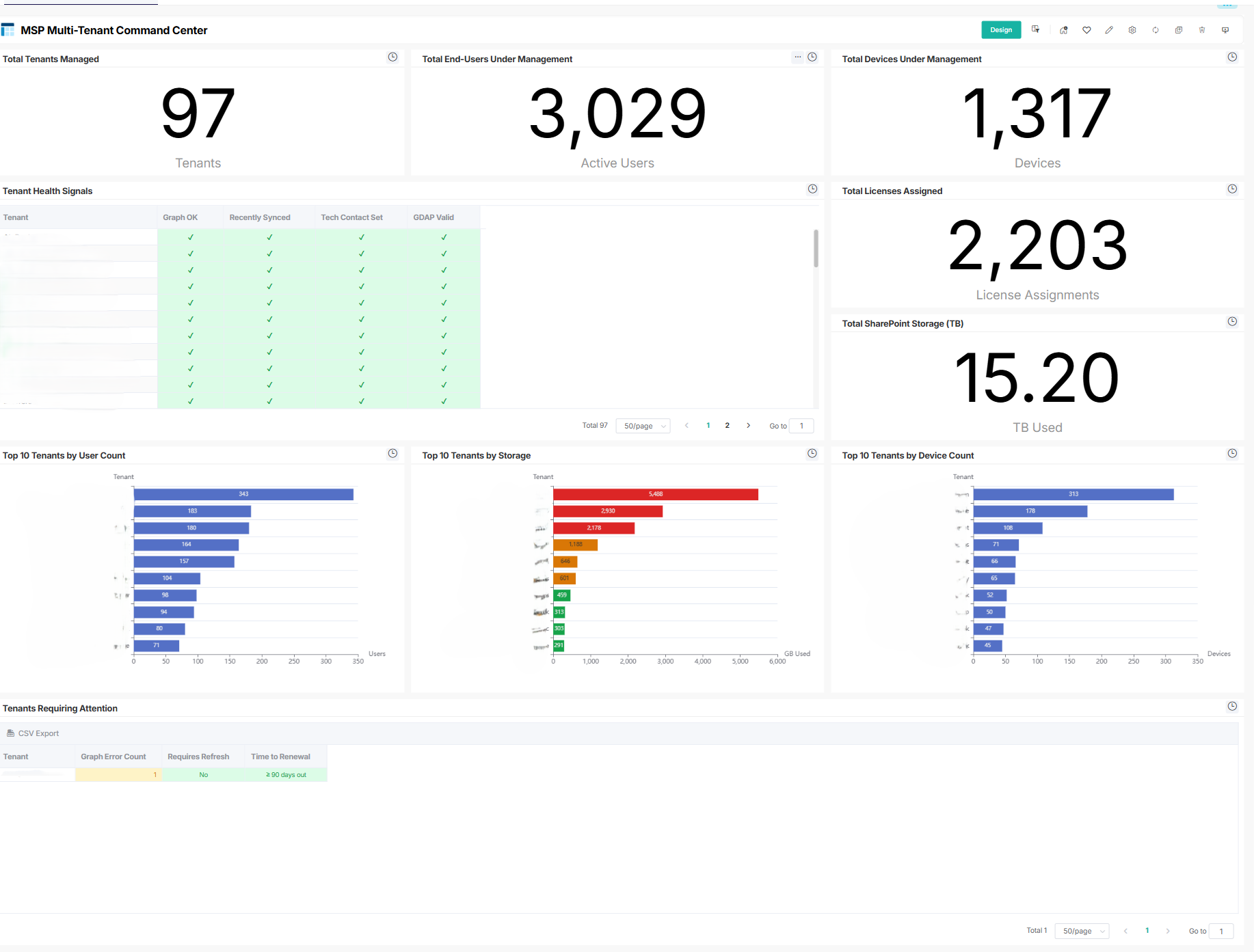
- MSP Multi-Tenant Command Center
- A top-level rollup across all managed tenants — tenants, users, devices, licenses, and storage, with a tenant health signal view and top-10 rankings. Use it for a daily estate-wide status check and to jump to tenants that need attention.
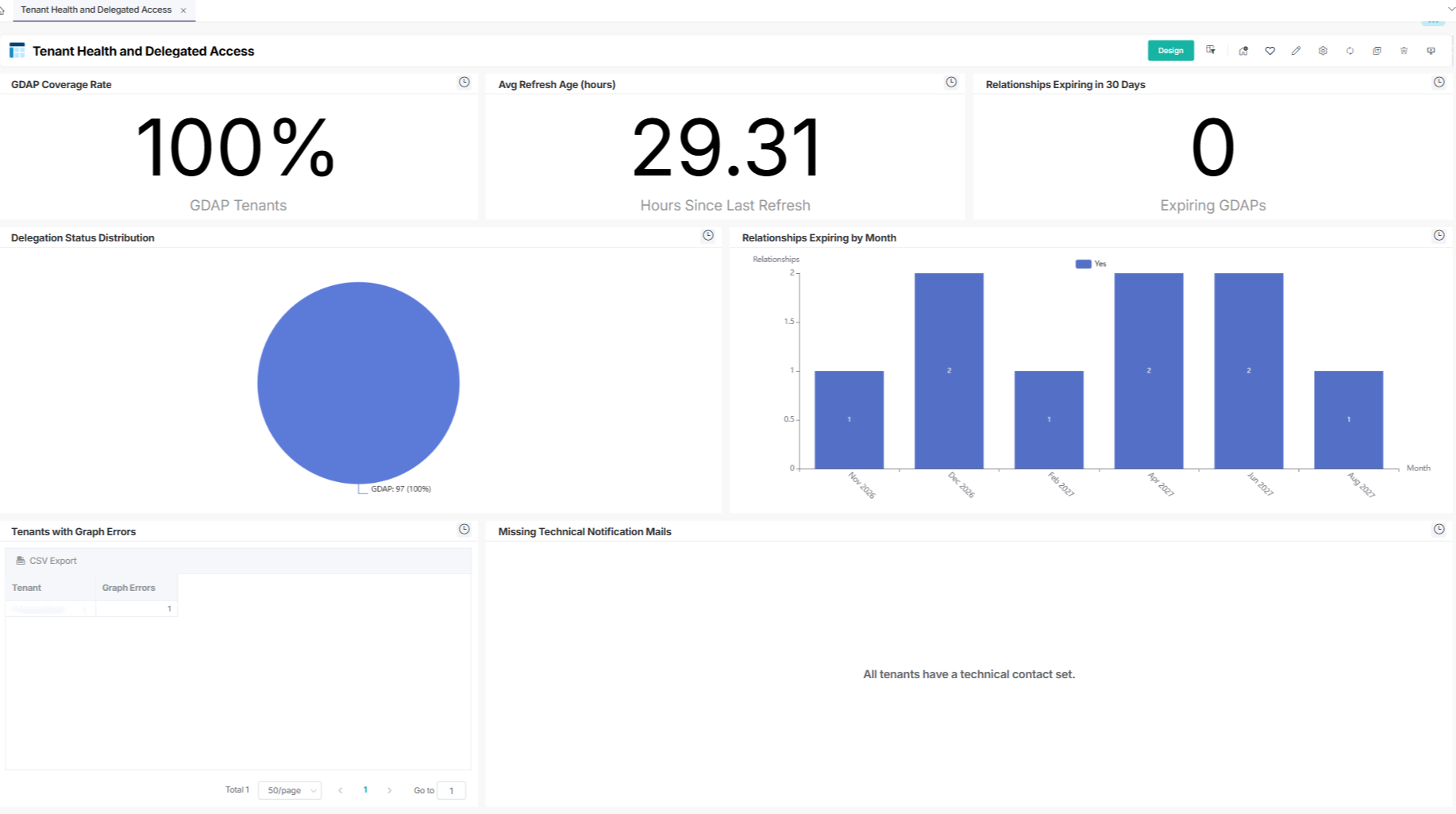
- Tenant Health and Delegated Access
- GDAP delegation coverage, relationships expiring soon, data refresh age, and tenants with Graph errors. Use it to keep delegated access healthy and renew relationships before they lapse.
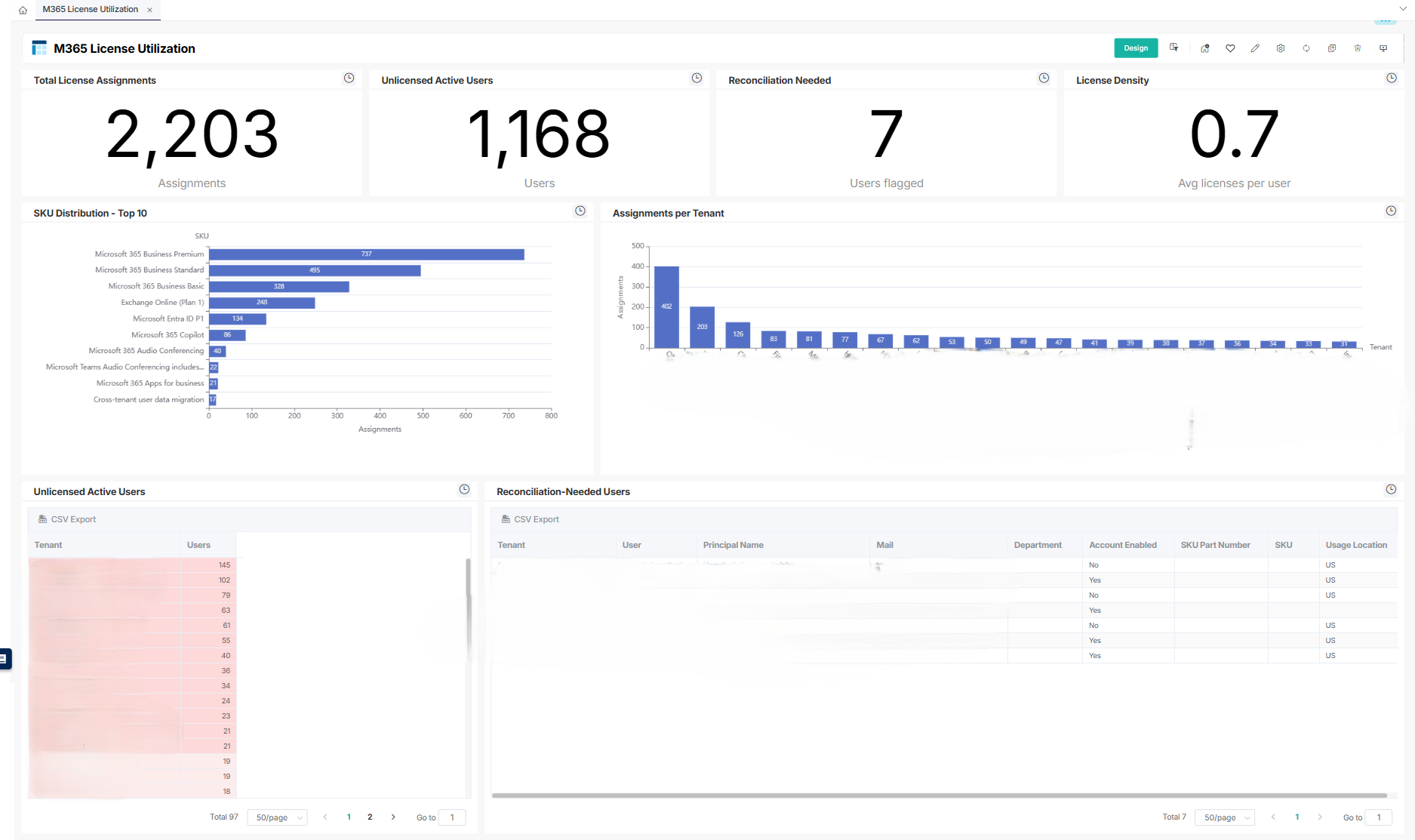
- M365 License Utilization
- Licenses assigned versus active usage, unlicensed active users, reconciliation needs, SKU mix, and license density. Use it to reclaim unused licenses and right-size subscriptions.
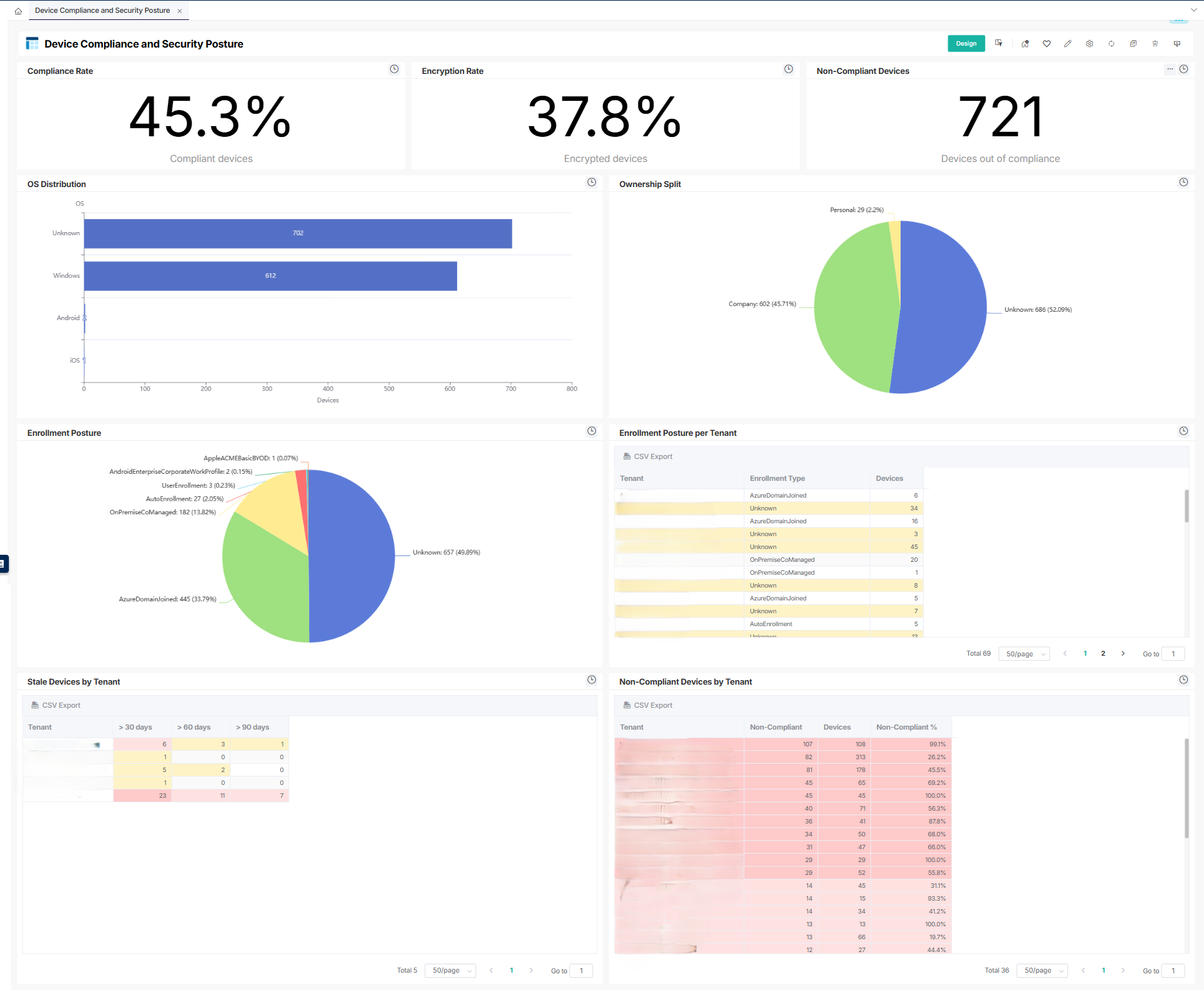
- Device Compliance and Security Posture
- Intune compliance and encryption rates, non-compliant and stale devices, OS and ownership breakdowns, and enrollment posture. Use it to prioritise remediation on the devices that put a tenant most at risk.
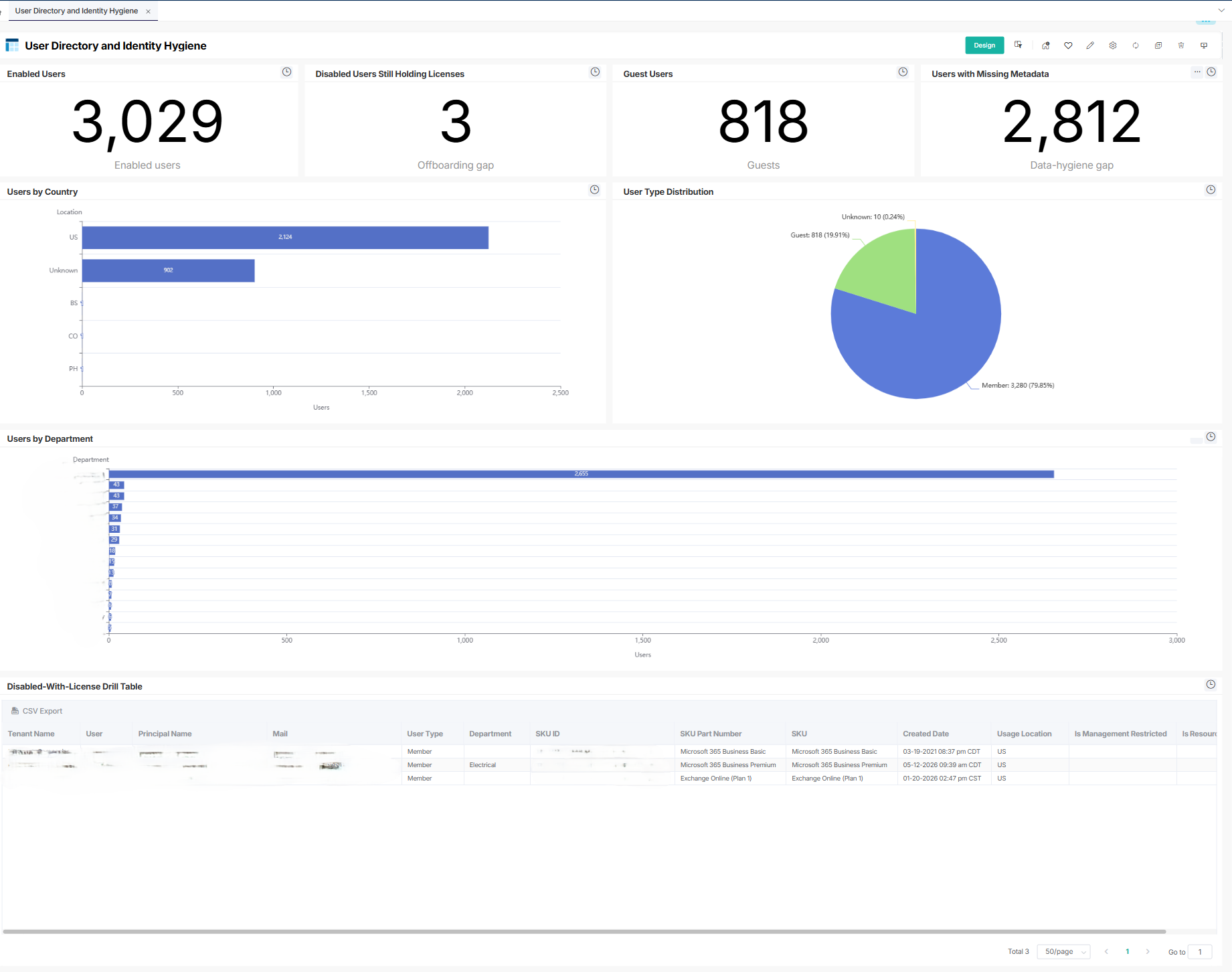
- User Directory and Identity Hygiene
- Enabled, disabled, and guest users, disabled accounts still holding licenses, missing metadata, and department and type distribution. Use it to clean up stale identities and cut license waste from inactive users.
Applies to: Clients with CyberDrain CIPP integration
Integration: CyberDrain CIPP Integration Setup
[New Template Assets] ConnectWise Asio (RMM) — New RMM data ready to report on
Fresh ConnectWise RMM datasets to build reports and dashboards on.
What's new: MSPBots now includes 4 new template datasets for the ConnectWise Asio (ConnectWise RMM) integration — endpoint performance, endpoint summary, Windows OS patch assessment, and OS patch compliance.
Why it helps: Gives you clean, structured ConnectWise RMM data to report on endpoint health and patch status — without building the queries yourself.
How to use it: On by default, no setup needed. Once the ConnectWise Asio integration is connected, the new datasets are available in your Dataset Library.
Template datasets:
- ConnectWise RMM Endpoint Performance
- ConnectWise RMM Endpoint Summary
- ConnectWise RMM OS Patch Assessment - Windows
- ConnectWise RMM OS Patch Compliance
Applies to: Clients with ConnectWise Asio (ConnectWise RMM) integration
Integration: ConnectWise Asio Integration Setup
August 24, 2026