Release Note
[2026/09/28] Release Notes: Set AI Credits Cap, New BI Unlimited Plan, and New Axcient X360Recovery Integration
September 28, 2026
.png)

PRODUCT
[New Feature] Set a daily ceiling on your AI credit use
A daily limit, on by default, so an overnight or weekend runaway is capped at a number you can see and change.
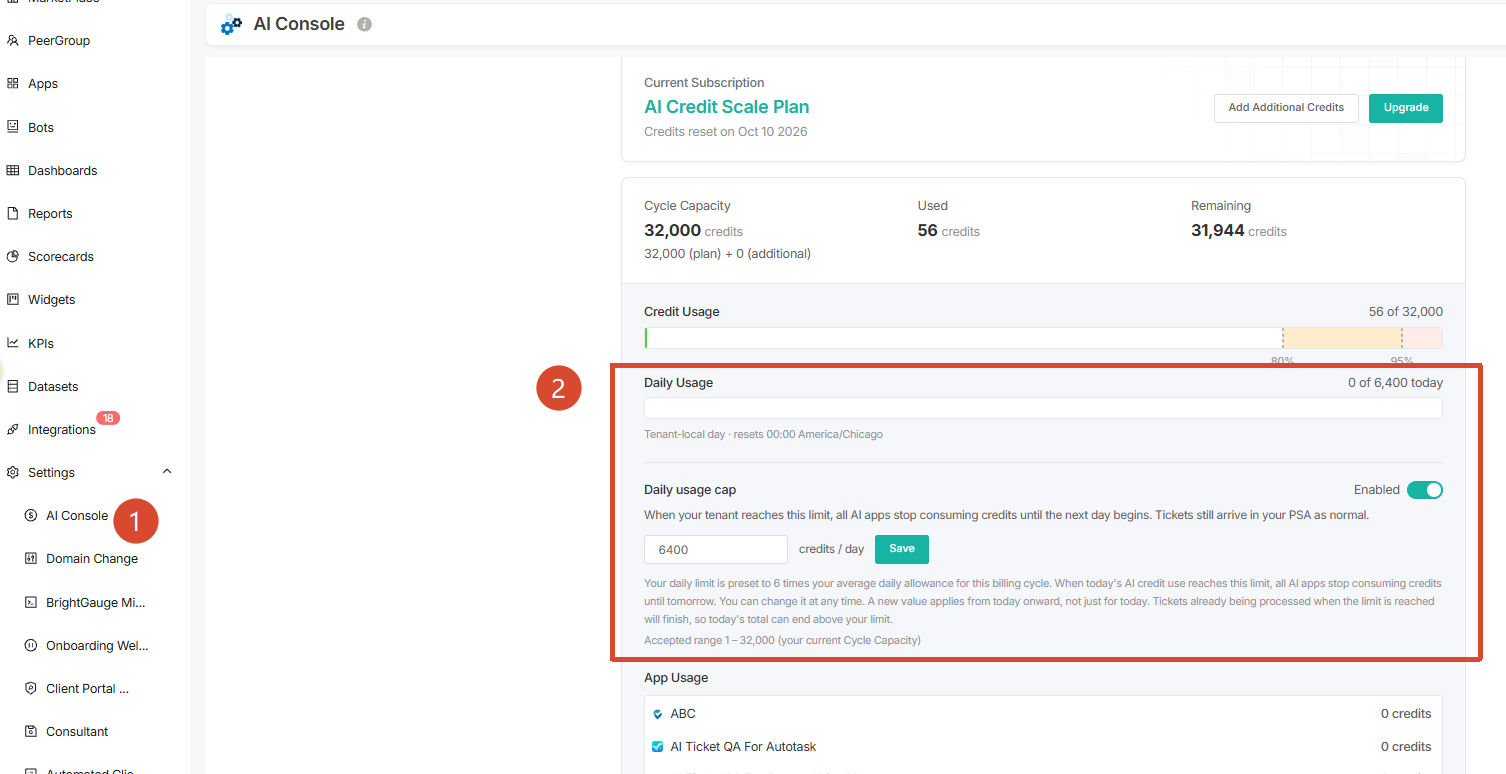
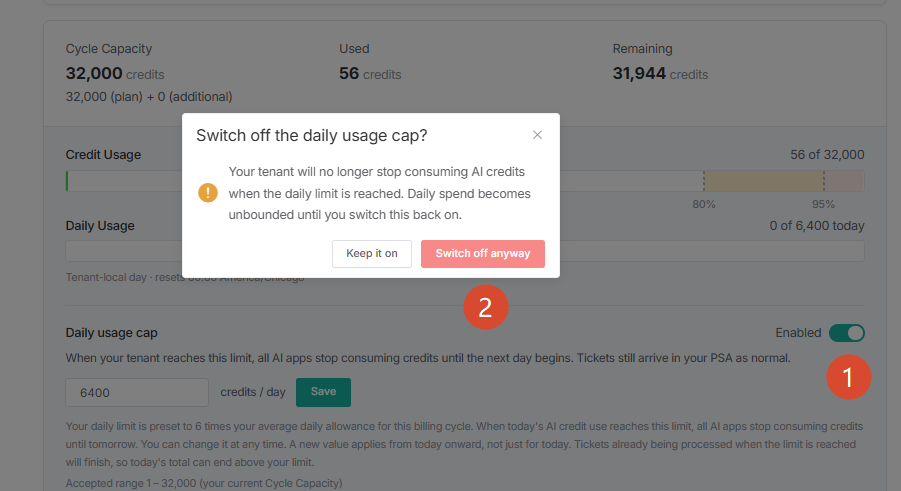
What's new: The Credit Usage panel in AI Console now has a Daily usage cap. It is on by default and preset to six times your average daily allowance for this billing cycle, and you can change it at any time. A Daily Usage bar shows today's use against the limit. When today's AI credit use reaches the limit, all AI apps stop consuming credits until tomorrow — work already in progress finishes, so a day's total can end slightly above your limit — and AI resumes automatically at 00:00. If you reach the limit on two days in a row, AI stays paused until someone raises the limit.
Why it helps: Until now the only thing that stopped AI credit consumption was running out of credits: not something you could set, and something you usually discovered after the fact and outside working hours. A daily limit turns that into a number you choose, can see against today's use, and can adjust yourself — with no purchase involved at any point.
Learn more: https://support.mspbots.ai/portal/kb?id=49
[New Feature] BI Unlimited is now a plan you can buy and manage yourself
Full BI at $699/month, priced publicly and self-serve — no sales call, no back-office setup.
What's new: BI Unlimited is now a standalone plan at $699/month. It includes everything in Professional except Bots and Next Ticket, comes with 2 admin licenses at no cost, and additional admin licenses are $29 each. It does not include AI credits. You can buy it, upgrade to it or move off it yourself, and add supported integrations without a sales step. The plan and its price now appear on the website pricing page, in the in-app Marketplace, on your Billing page and at checkout, and your invoice line reads BI Unlimited.
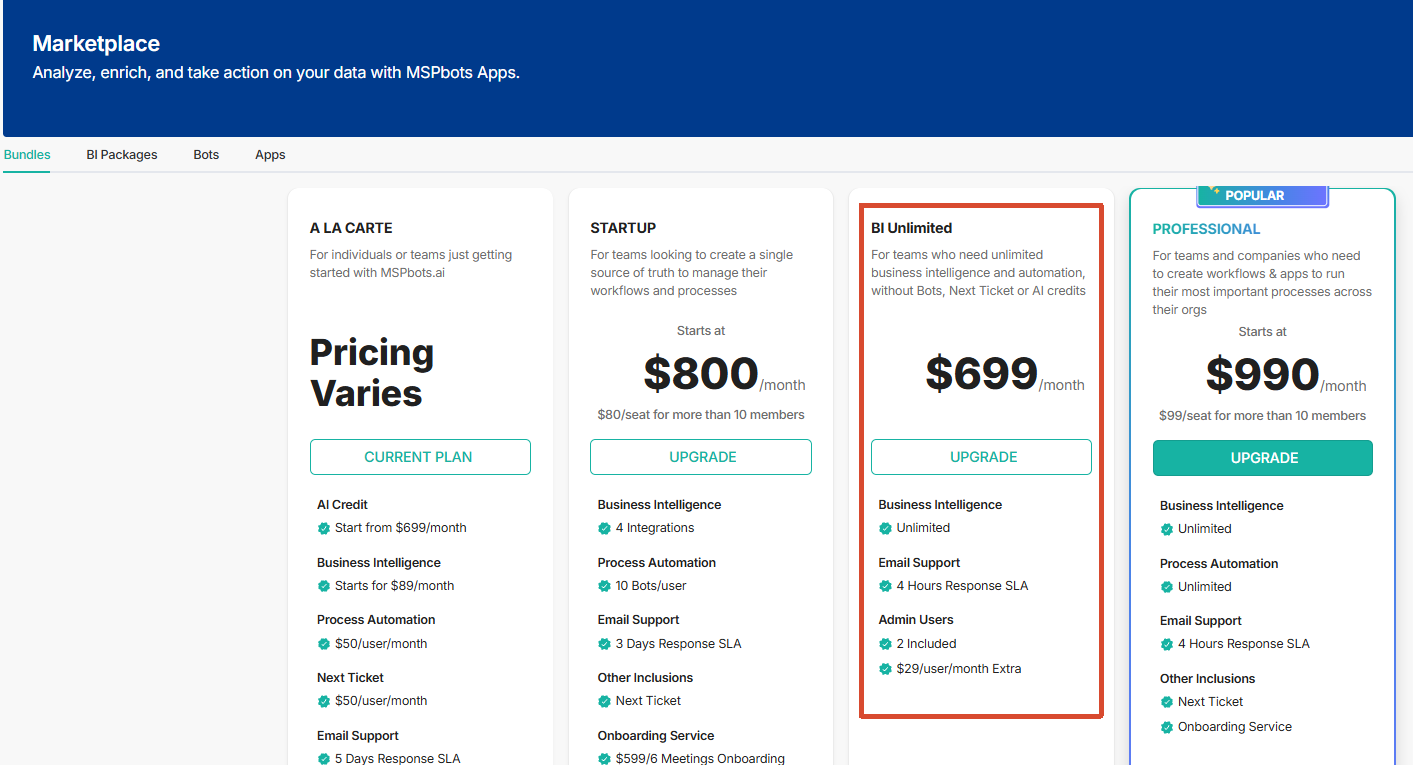
Why it helps: BI Unlimited previously had to be assembled for you by hand, so every change — starting it, adding a seat, leaving it — went through a person. Now it behaves like any other plan: you can see what it costs before you commit, change it on your own schedule, and let proration handle the billing.
How to use it: New customers can purchase from the website pricing page, the in-app Marketplace or at checkout. Existing customers change plan from the Billing page. To add an admin beyond the 2 included, add the seat from Billing — the incremental charge is shown before you confirm, and removing a seat reduces it, with proration applied automatically.
Applies to: All customers and prospects. If BI Unlimited was configured for you manually, your account keeps working exactly as it does today and your account team will move it onto the new plan.
Learn more: [https://support.mspbots.ai/portal/kb?id=234] [https://support.mspbots.ai/portal/kb?id=2156 ]
[Enhancement] List the technicians who logged time in your Ticket QA alerts
See who worked the ticket without opening it, so you can forward the alert to the right person straight away.
What's new: A new token, {{entry_technician}}, is available in both the Ticket QA alert template and note template, and you can insert it from the token picker in the template editor. It lists the display name of every technician who logged a time entry on the ticket — each person once, in the order their first time entry was recorded, separated by commas, with no cap on how many are listed. If no time was logged on the ticket, it renders No time entries recorded.
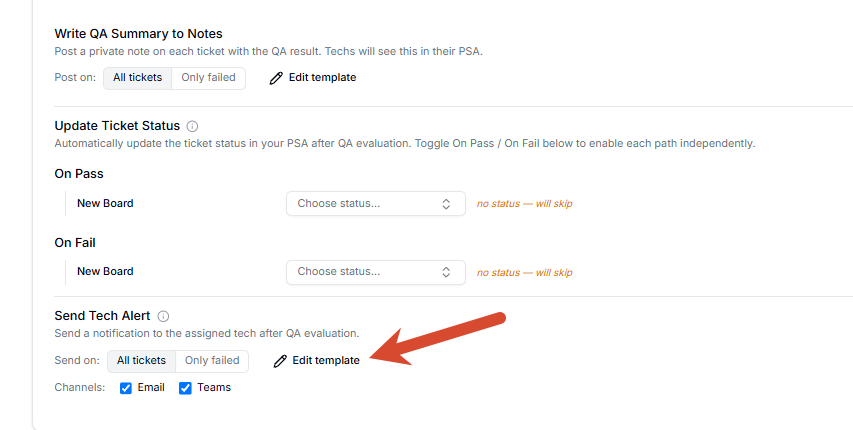
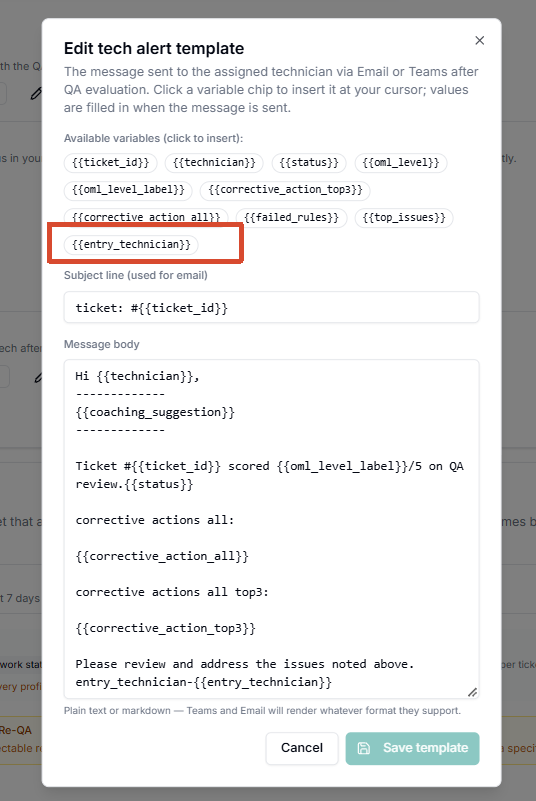
Why it helps: When several technicians work one ticket, the QA alert named only the QA Owner, so whoever received it had to open the ticket to work out who actually did the work before forwarding it.
How to use it: Open your Ticket QA alert or note template, put the cursor where you want the list, and pick {{entry_technician}} from the token picker. Write your own heading around it if you want one — the token outputs the names only. Your existing templates are untouched until you add it, and the token has no effect until you do.
Applies to: Ticket QA on ConnectWise Manage and Autotask, all accounts. Email and Microsoft Teams show the same text. The existing {{technician}} token is unchanged and still shows the QA Owner. Only technicians who logged a time entry appear — someone assigned to the ticket, or who only added a note, does not.
Learn more:[https://support.mspbots.ai/portal/kb?id=2136]
[Enhancement] See when a ticket's contact has been deactivated, before you start work
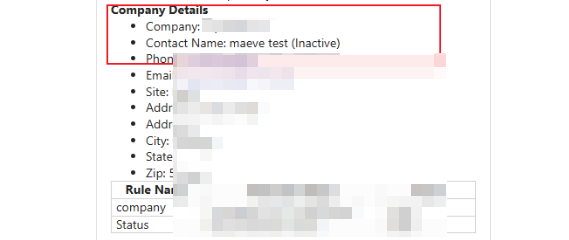
The NextTicket dispatch card now marks a deactivated contact as (Inactive).
What's new: When NextTicket dispatches a ticket to Teams, the Contact Name on the card now reads name (Inactive) if that contact has been deactivated in your PSA. When the contact is active, when the ticket has no contact, or when the contact's status cannot be determined, the card looks exactly as it did before — the marker is added only when the contact is definitely inactive.
Why it helps: Your PSA shows a deactivated contact as inactive, but the dispatch card did not, so a technician could pick up a ticket and spend time on it before finding out the contact is no longer active.
How to use it: On by default, no setup and nothing to configure.
Applies to: NextTicket for ConnectWise Manage, all accounts. The marker appears on tickets that enter the NextTicket queue after this release; a ticket already waiting in the queue picks it up once it re-enters. The status follows your PSA within one sync cycle. Ticket ordering, prioritisation and every other field on the card are unchanged.
Learn more: [https://support.mspbots.ai/portal/kb?id=414]
[Enhancement] The Widgets page button is now called AI Widget Editor
Same button, clearer name.
What's new: On the Widgets page, the button previously labelled AI Widget now reads AI Widget Editor.
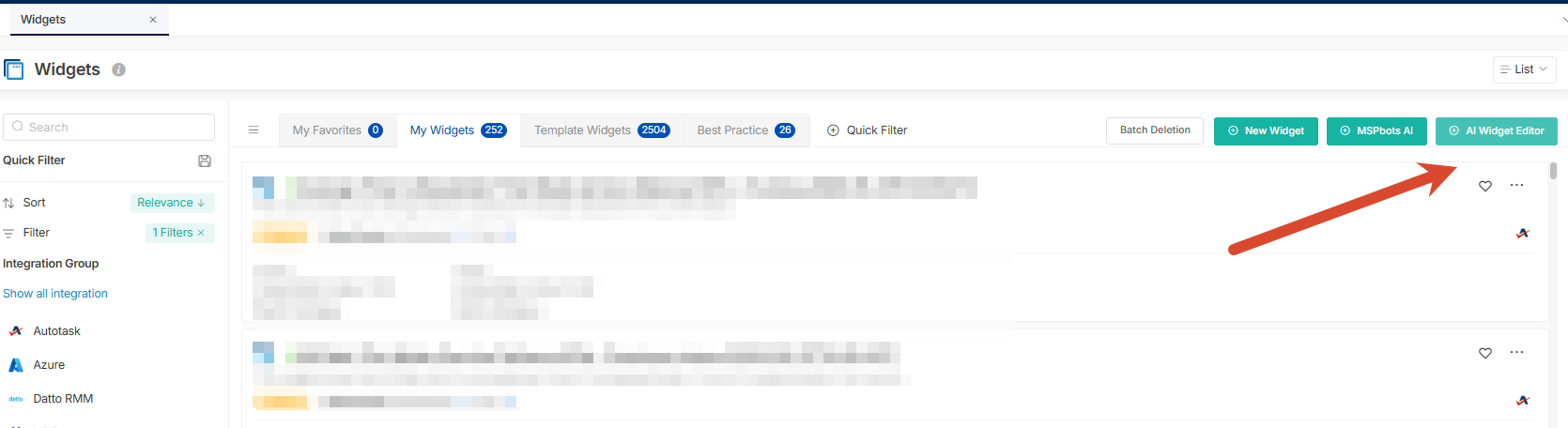
Why it helps: The label now says what the button opens.
How to use it: On by default, no setup. Nothing else changes — same button, same editor, same access.
Applies to: The Widgets page, all accounts.
Learn more: [No relevant KB]
ASSET
[New Integration] Axcient X360Recovery — Ready-to-Use Backup Monitoring Dashboards
Monitor backup device health and appliance status across all your clients — from day one, no setup required.
What's new: MSPbots now includes five pre-built template dashboards and 40 widgets for the Axcient X360Recovery integration. Your team gets immediate cross-client visibility into backup health, device status, vault and appliance infrastructure, and storage utilization the moment the integration is connected — no dashboard building required.
Why it helps: Before this release, checking backup device and appliance health in Axcient meant logging in per client. These templates give you a single cross-client view in MSPbots so issues are caught before they become escalations.
How to use it: On by default, no setup needed. If you have the Axcient X360Recovery integration installed, open the Dashboard Library and look for the templates under Template Assets.
Dashboards:
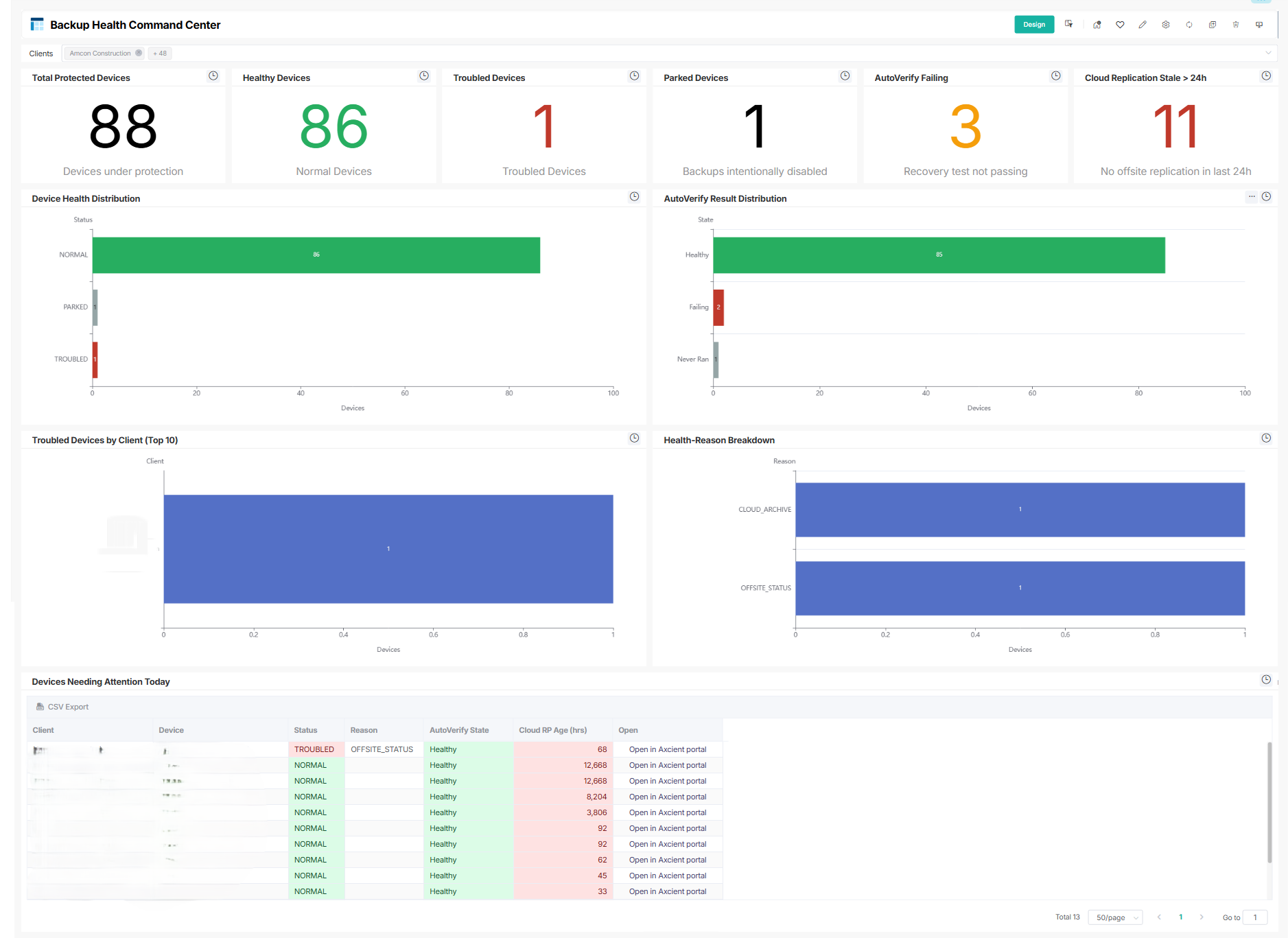
Cross-client overview of all protected devices and backup health. Use it to track total protected, healthy, troubled, and parked devices — with AutoVerify status, cloud replication lag, health distribution, and a prioritized list of devices needing attention today.
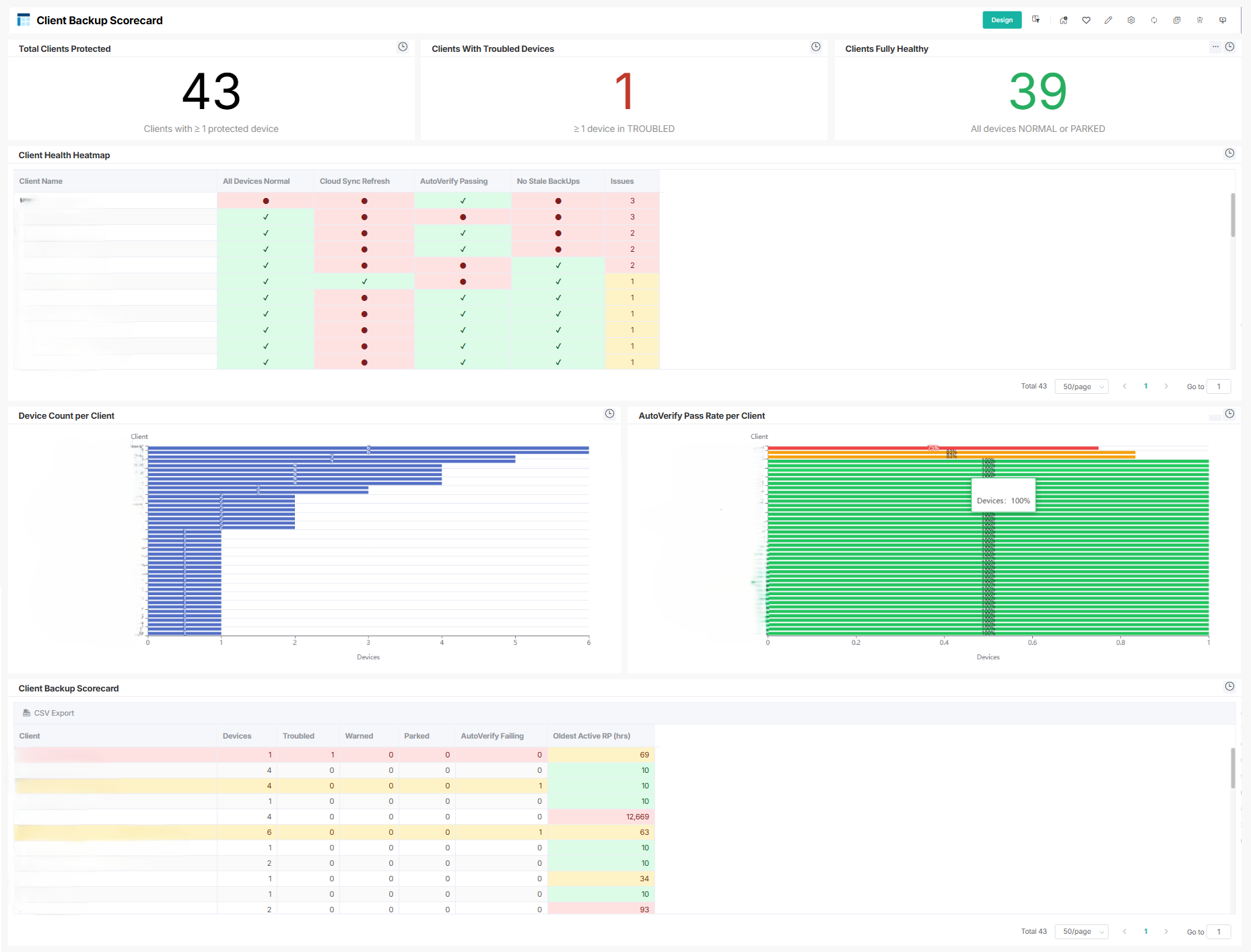
Per-client backup performance summary across your entire book of business. Use it to see which clients have troubled devices, fully healthy fleets, AutoVerify pass rates, and device counts — in one ranked scorecard view.
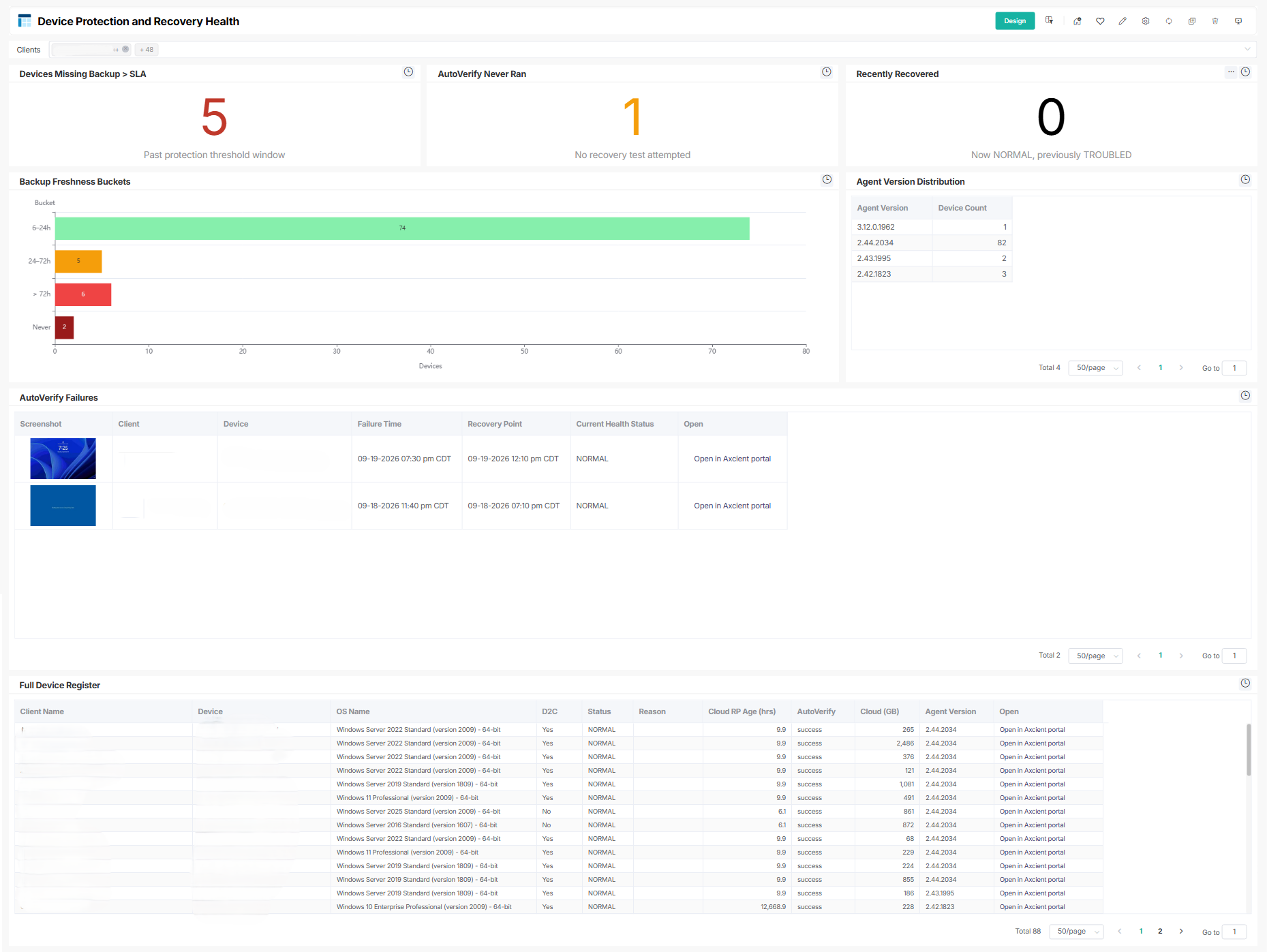
Backup protection gap and recovery readiness dashboard. Use it to surface devices missing backup beyond SLA, AutoVerify never-ran counts, recently recovered devices, backup freshness distribution, and agent version spread.
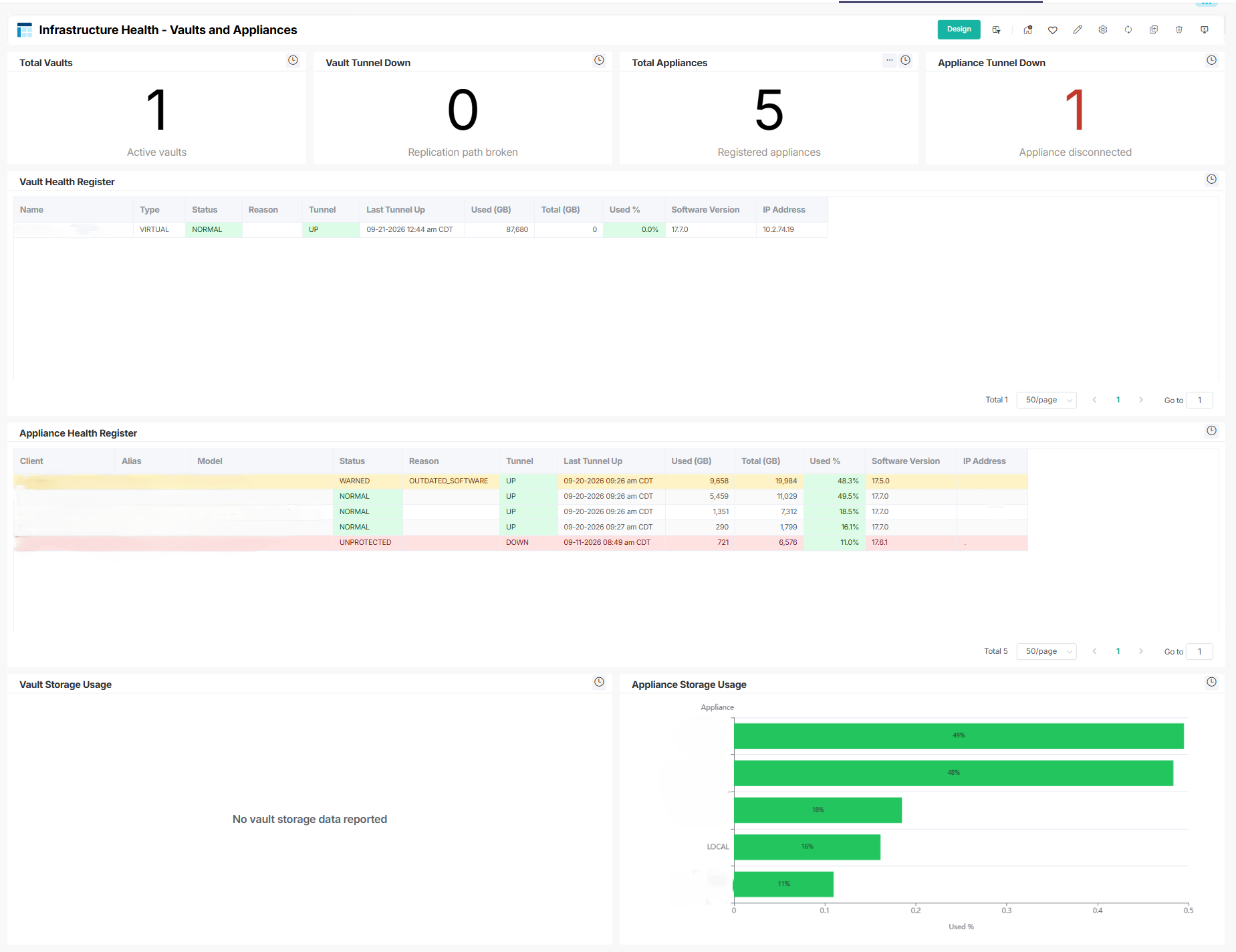
Vault and appliance health register across all clients. Use it to track total vaults and appliances, tunnel-down counts, health status registers, and storage usage per infrastructure component.
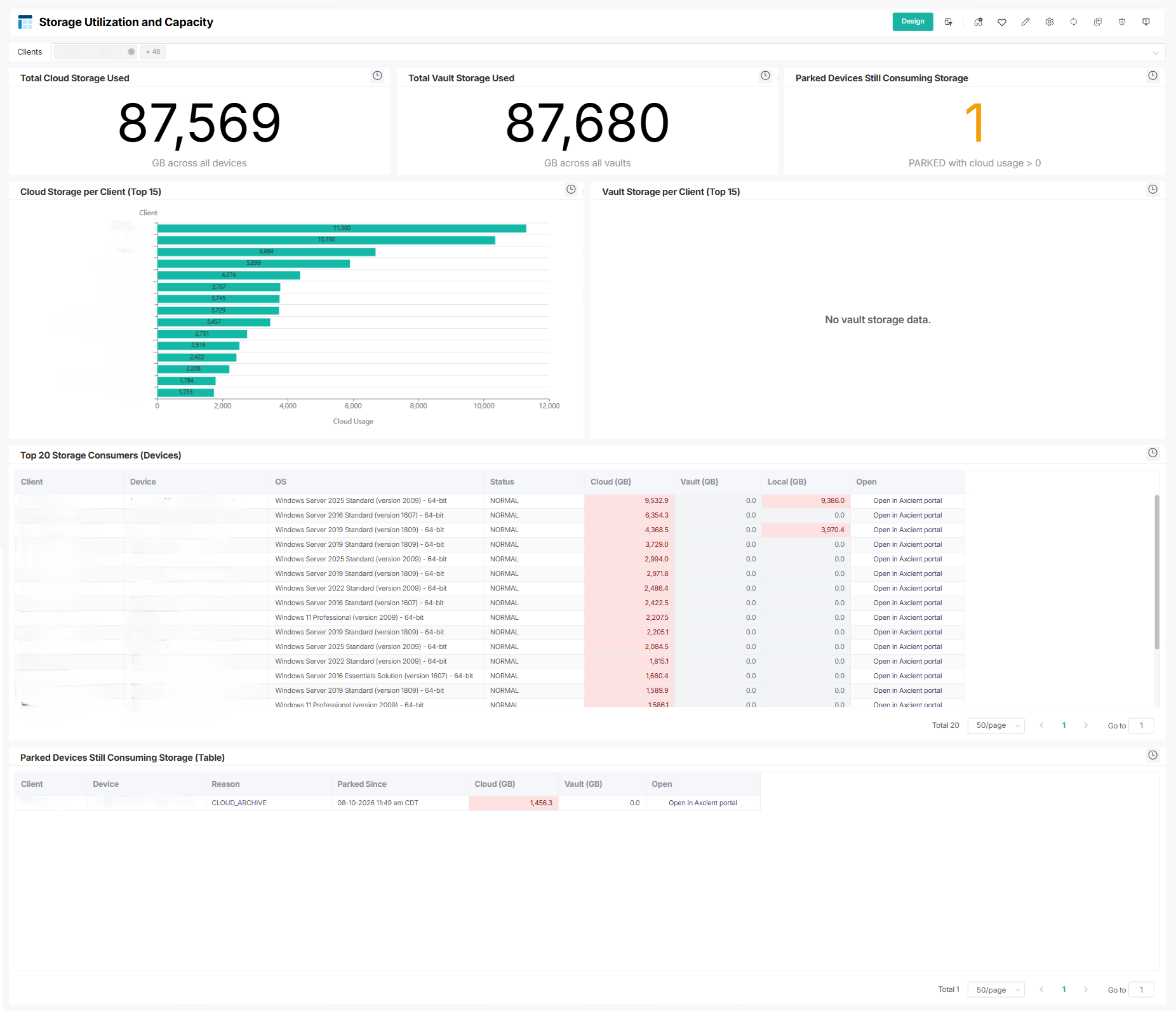
Cloud and vault storage consumption across your entire Axcient fleet. Use it to identify top storage consumers by device and client, spot parked devices still consuming storage, and monitor cloud vs. vault usage trends.
Applies to: Clients with Axcient X360Recovery integration
Integration: Axcient x360Recover Integration Setup
[Enhancement] ConnectWise Manage Account Profitability Dashboard
See exactly where each client's revenue, cost, and margin stand — sliced by revenue stream, filtered by company, and ready without building a single report.
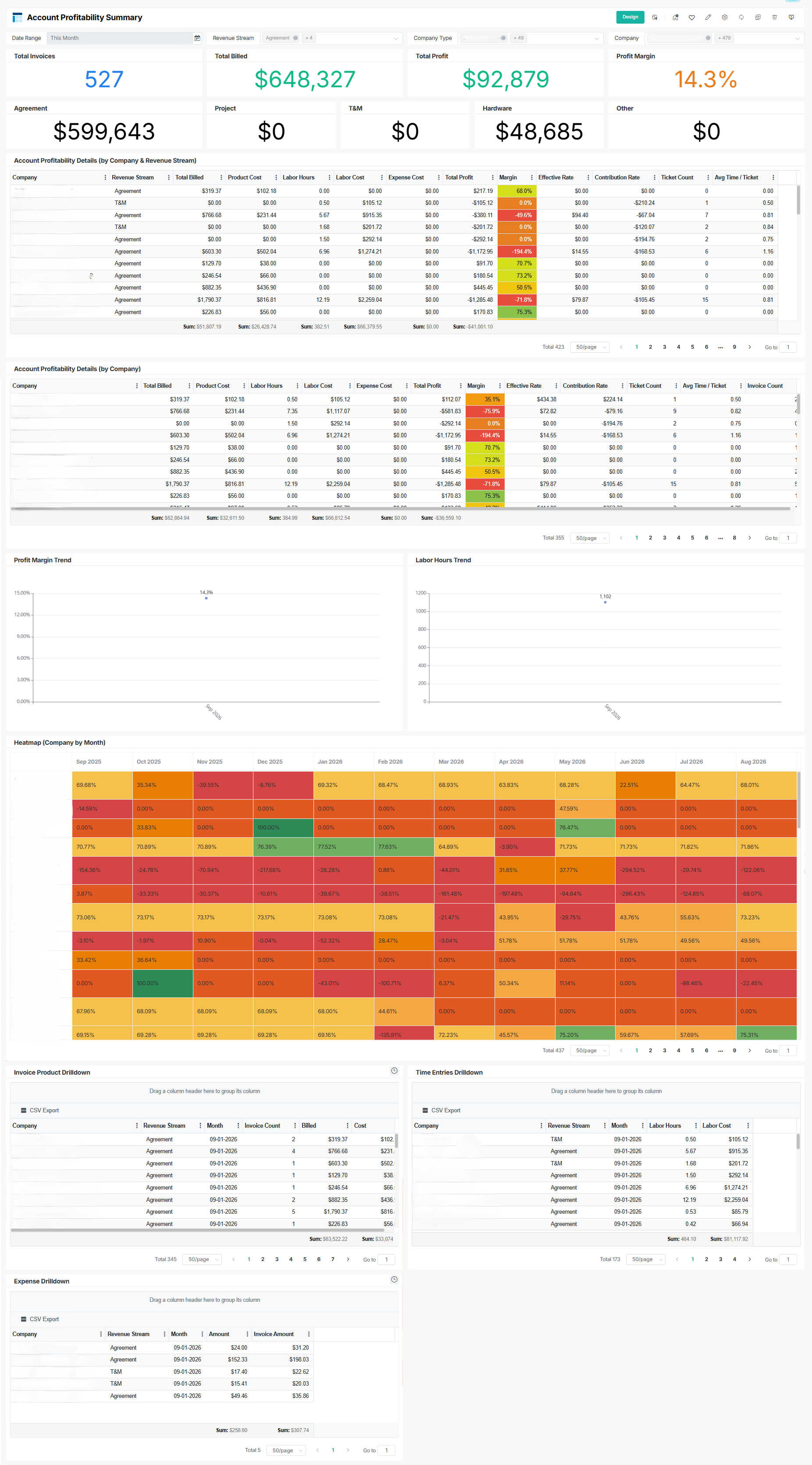
What's new: MSPbots now includes a pre-built Account Profitability template dashboard for ConnectWise Manage: 1 dashboard and 17 widgets covering total invoice, billed, profit, and margin by account — broken down by Agreement, Project, T&M, Hardware, Other, and Expense — with full drilldown into product, time entry, and expense details.
Why it helps: Getting a full account profitability picture previously required manual report exports or custom dashboard builds. This release delivers it out of the box — sliceable by company, revenue stream, company type, and date range, so every account review starts with data already in hand.
How to use it: On by default. Open the Dashboard Library under Template Assets → Account Profitability. Use the built-in slicers to filter by company, revenue stream, company type, or date range.
Dashboards:
Cross-client account profitability rollup showing monthly revenue, cost, and margin across every client and revenue stream. Use it to track total invoices, billed amounts, profit, and margins — filterable by company, revenue stream, and date — with drilldown into product, time entry, and expense detail.
Applies to: ConnectWise Manage integration — Account Profitability template dashboards
September 28, 2026