Release Note
[2026/10/27] Release Notes: Custom Text in Widgets, 8-Hour NextTicket Locks, HaloPSA Contract Subtype Filters
October 27, 2026


This month's updates cover Release 2.73 (Oct 19) and Release 2.72 (Oct 9).
PRODUCT
[Enhancement] Show Company Type, Contact Type and Last Updated in the NextTicket nt message
See the client's type, the contact's type and how fresh the ticket is before you accept it — without opening the PSA.
What's new: Three new fields are available in the NextTicket nt message template: Company Type, Contact Type (ConnectWise) / Classification (Autotask), and Last Updated (with time zone, same format as the SLA Status line). Multiple values are separated by ;. A field with no value is left out of the message.
Why it helps: Technicians can judge service level and priority from the message itself, so they spend less time switching to the PSA before accepting a ticket.
How to use it: The new fields are part of the platform default template. If you already saved your own template, nothing changes automatically. Just type nt to trigger it.
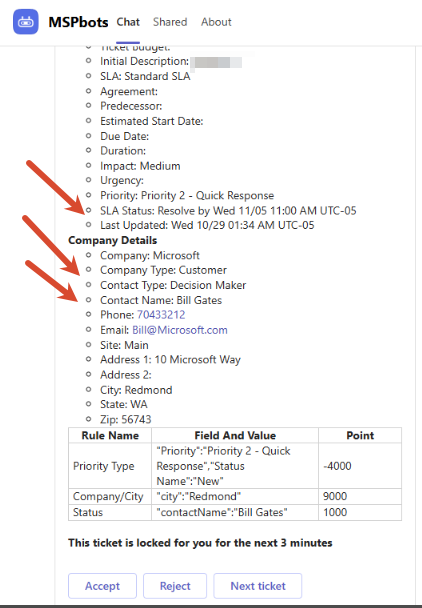
Applies to: NextTicket for ConnectWise Manage and NextTicket for Autotask, using the nt command in Teams or Slack. Not available for HaloPSA or Kaseya BMS.
Learn more: How to Edit the Bot Message for the nt Command
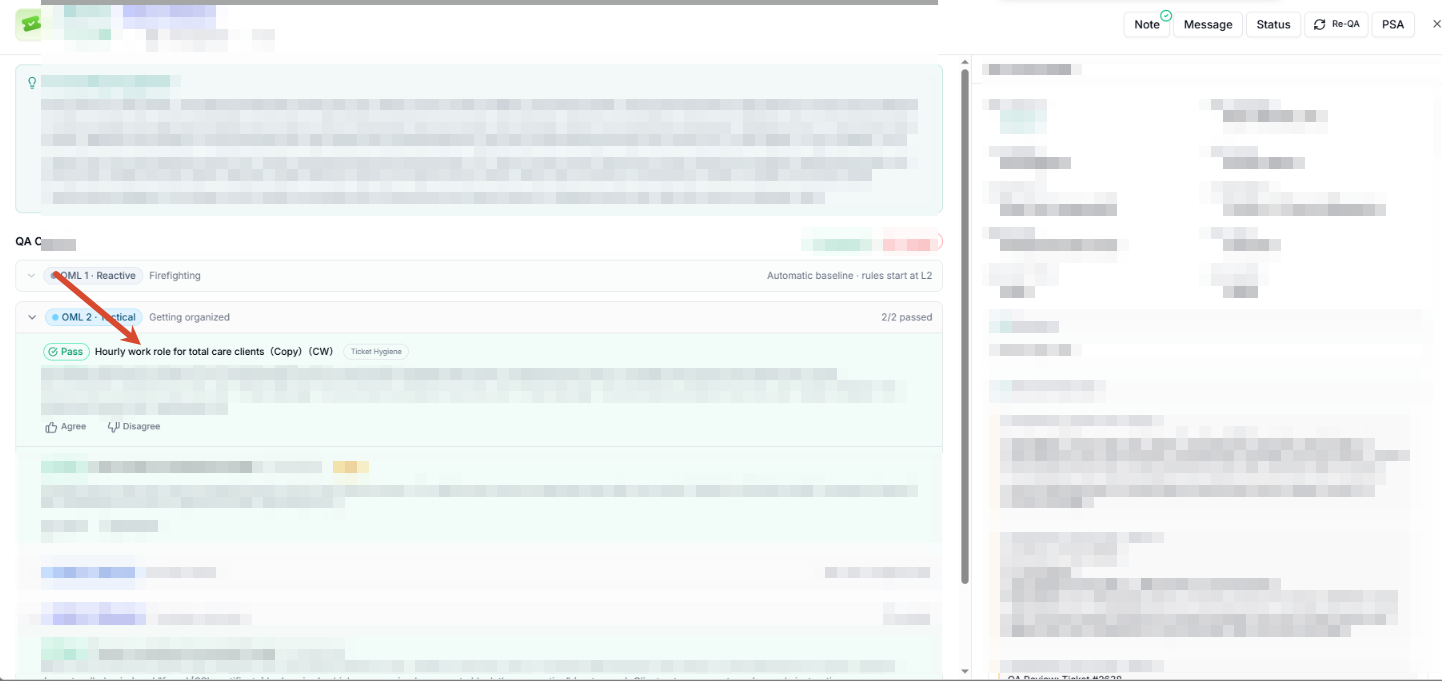
[Enhancement] Use the time entry's work role in AI Ticket QA rules
Rules about which work role a time entry should use can now be checked against the real value from your PSA.
What's new: AI Ticket QA now reads the work role of each ConnectWise time entry, so a QA rule can check it — for example, that billable time on a given agreement uses an approved role. If a time entry has no work role set, the role is passed to QA as empty, so a rule that requires a specific role may not pass.
Why it helps: Before, a rule about work role could fail even when the technician had entered the right role, because the role was not available to QA. Now the verdict matches what is in your PSA.
How to use it: Nothing to turn on. Mention the work role in your rule text in AI Ticket QA → Settings → QA Criteria. Tickets already evaluated are not re-checked automatically; run Re-QA on a ticket to evaluate it again (uses 1 AI credit per ticket).
Applies to: AI Ticket QA for ConnectWise Manage.
Learn more: AI Ticket QA App for ConnectWise and AutoTask
[New Feature] Replace a widget value with your own text using Conditional Formatting
Show "No surveys submitted" instead of a bare 0 — so the reports you send explain themselves.
What's new: Conditional Formatting rules have a new Text Content field. When the rule matches, the widget shows your text instead of the number. Each rule has its own text, so different widgets can say different things. The rule checks the actual value, not the rounded one shown on screen, so 0.004 displayed as 0.00 does not count as 0.
Why it helps: A 0 on a client report can mean "not subscribed", "no activity" or "nothing in scope". Now you decide what the reader sees, on dashboards, report pages and PDF / CSV exports.
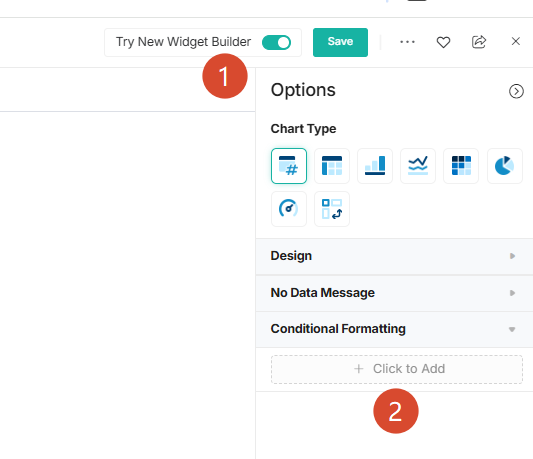
How to use it: As an admin, open the widget in the Widget Builder (new builder: Options › Conditional Formatting; original builder: Condition tab) → add a rule (for example, value = 0) → enter your Text Content. Leave Text Content empty to keep showing the value. If several rules match, the top rule is used. Works in both the old and the new widget builder.
New Widget Builder
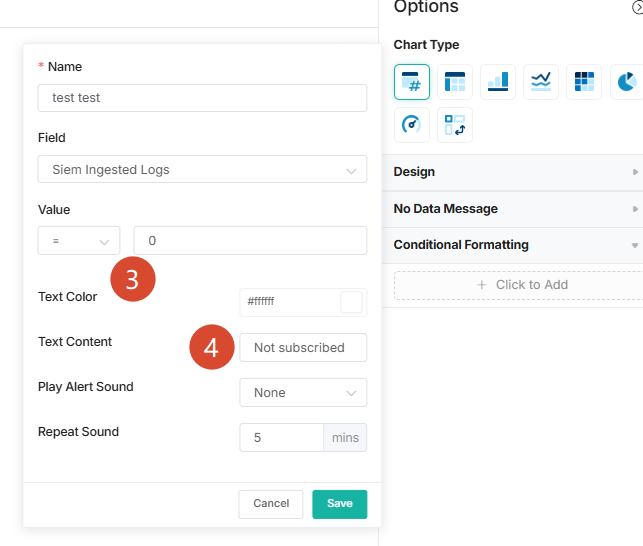
Original Widget Builder
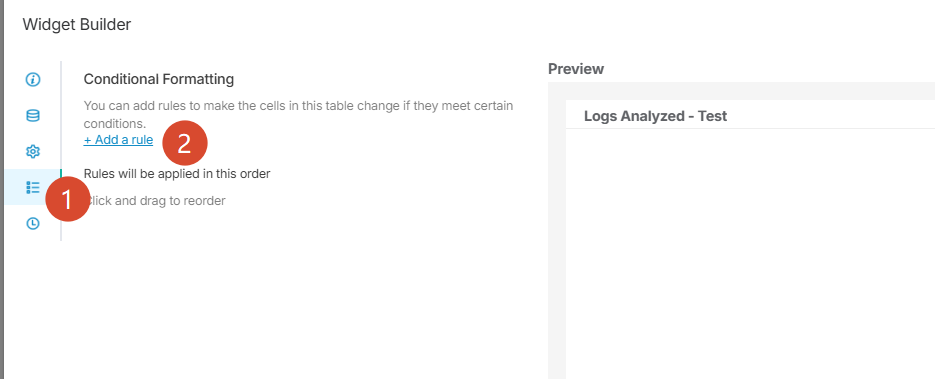
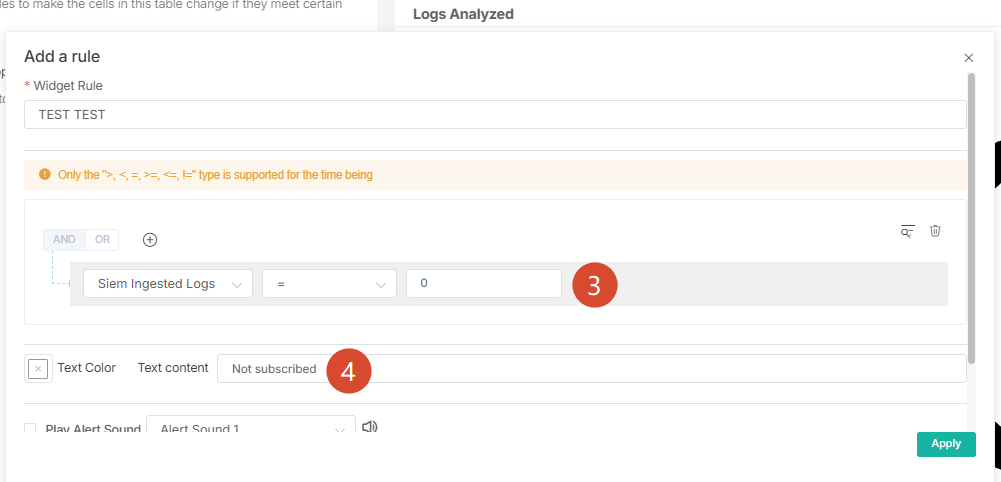
Applies to: All accounts. Card Number widgets with numeric fields. Sorting, drill-through and API results still use the original value.
Learn more: How to Create a Card Number Widget Using the New Widget Builder
[Enhancement] Lock a dispatched NextTicket ticket for up to 8 hours
Set a lock long enough to cover a shift, so waiting it out is no longer a quiet way to pass on a ticket.
What's new: The maximum Lock & Timeout Duration in NextTicket is now 480 minutes (8 hours), up from 60. Values from 0 to 60 work exactly as before: the default is still 5 minutes, and 0 still turns the lock off.
Why it helps: With a 60-minute ceiling, a technician who didn't want a dispatched ticket could let the lock run out and the ticket would move on to a colleague. A longer lock keeps the ticket with the technician it was dispatched to, so they accept or decline it.
How to use it: Go to Settings > Options > Basic Header > Lock & Timeout Duration and enter a value up to 480 (minutes). Nothing changes until you change the value. Declining a ticket or requesting a new one still releases the lock immediately. While a ticket is locked, an administrator can't reassign it, so a longer lock also holds the ticket longer.
Applies to: NextTicket for Autotask and ConnectWise Manage, all accounts. The value is still entered and shown in minutes.

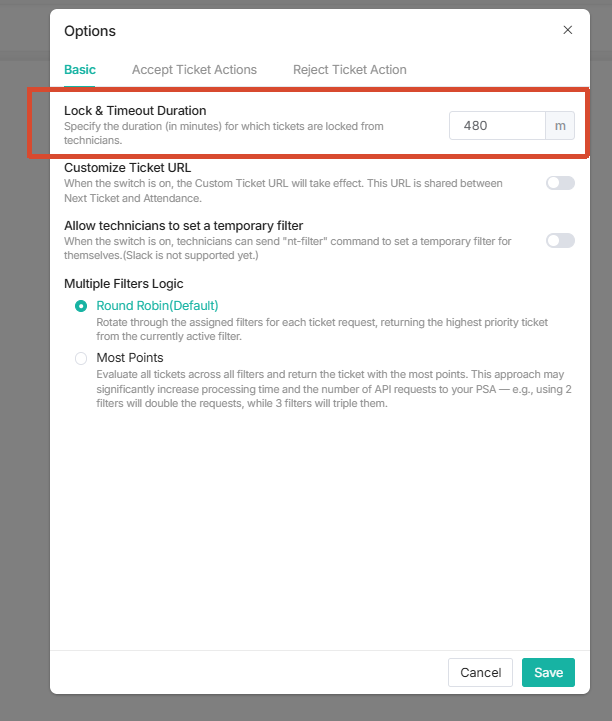
Learn more: NextTicket for Autotask · Next Ticket for ConnectWise Manage
[Enhancement] Catch ConnectWise tickets with unfinished Tasks in Ticket QA
A new built-in rule flags tickets that still have open items on the Tasks tab — no spot-checking by hand.
What's new: AI Ticket QA can now read whether each item on a ConnectWise ticket's Tasks tab is marked done. A new built-in rule, Tasks Tab Fully Completed, fails a ticket when at least one Tasks-tab item is still open. Tickets with no Tasks-tab items, and tickets whose task list can't be retrieved, are not failed by this rule.
Why it helps: Ticket QA previously had no view of the Tasks tab, so "all tasks must be complete" couldn't be checked automatically. Now an unfinished checklist is caught at QA time — and with After-Evaluation Actions, the ticket can go straight back to the technician.
How to use it: Find it in AI Ticket QA → Settings → QA Criteria under OML 2 · Tactical (Description Quality), where you can edit, duplicate or turn it off like any other rule.
Applies to: AI Ticket QA for ConnectWise Manage only. Rules you already have, and past QA results, are not changed.
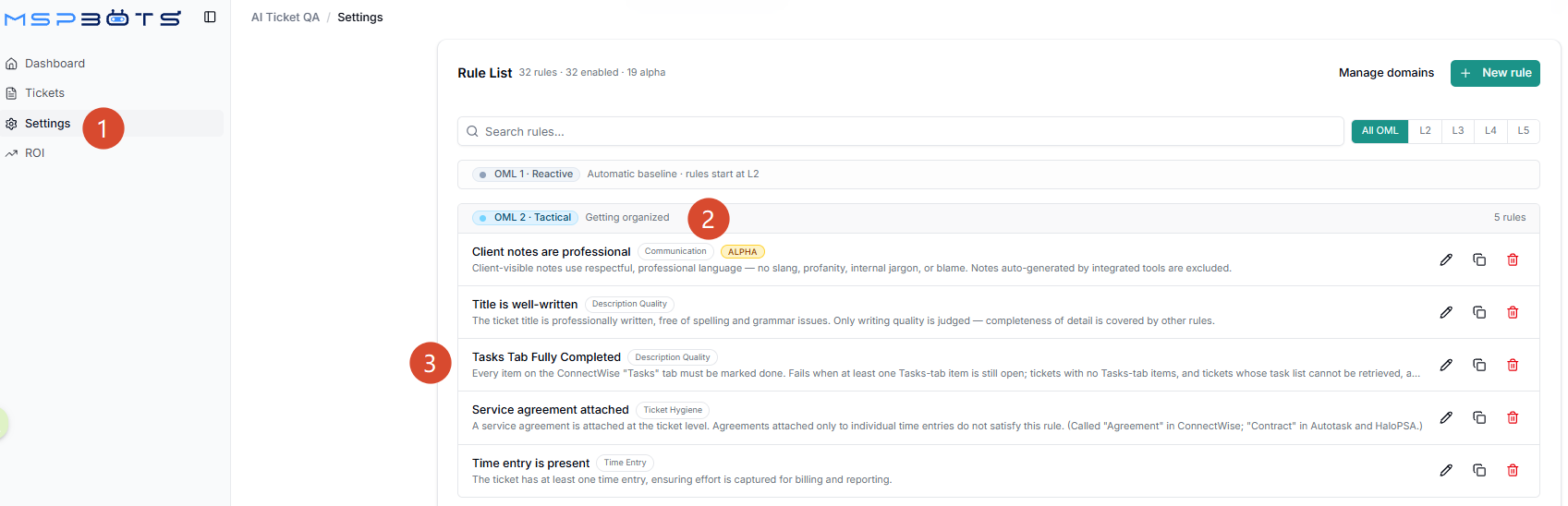
Learn more: AI Ticket QA App for ConnectWise and AutoTask
ASSET
[Enhancement] Contract Profitability for HaloPSA — Filter by Contract Subtype
Slice contract profitability by subtype as well as type, so each review focuses on the contracts that matter.
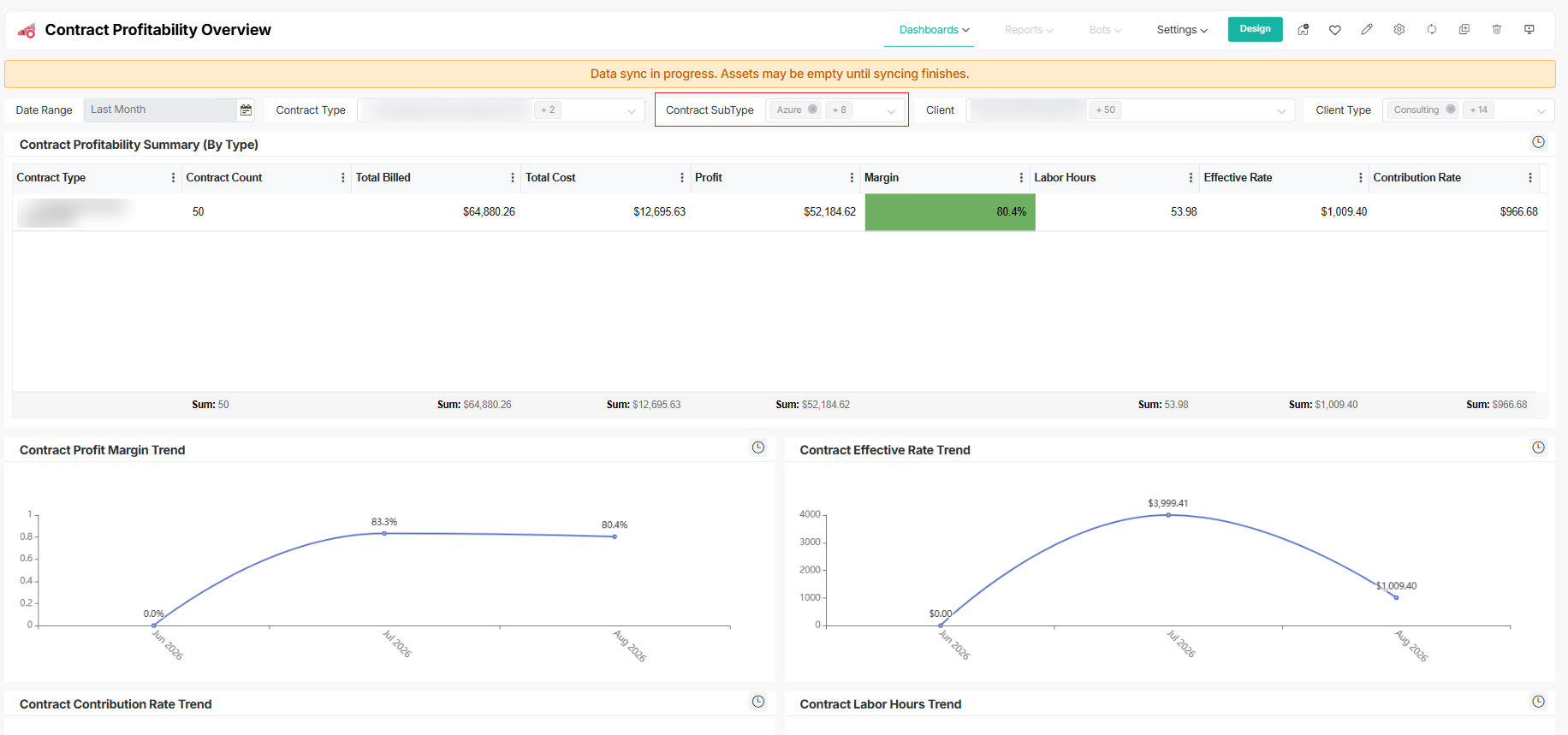
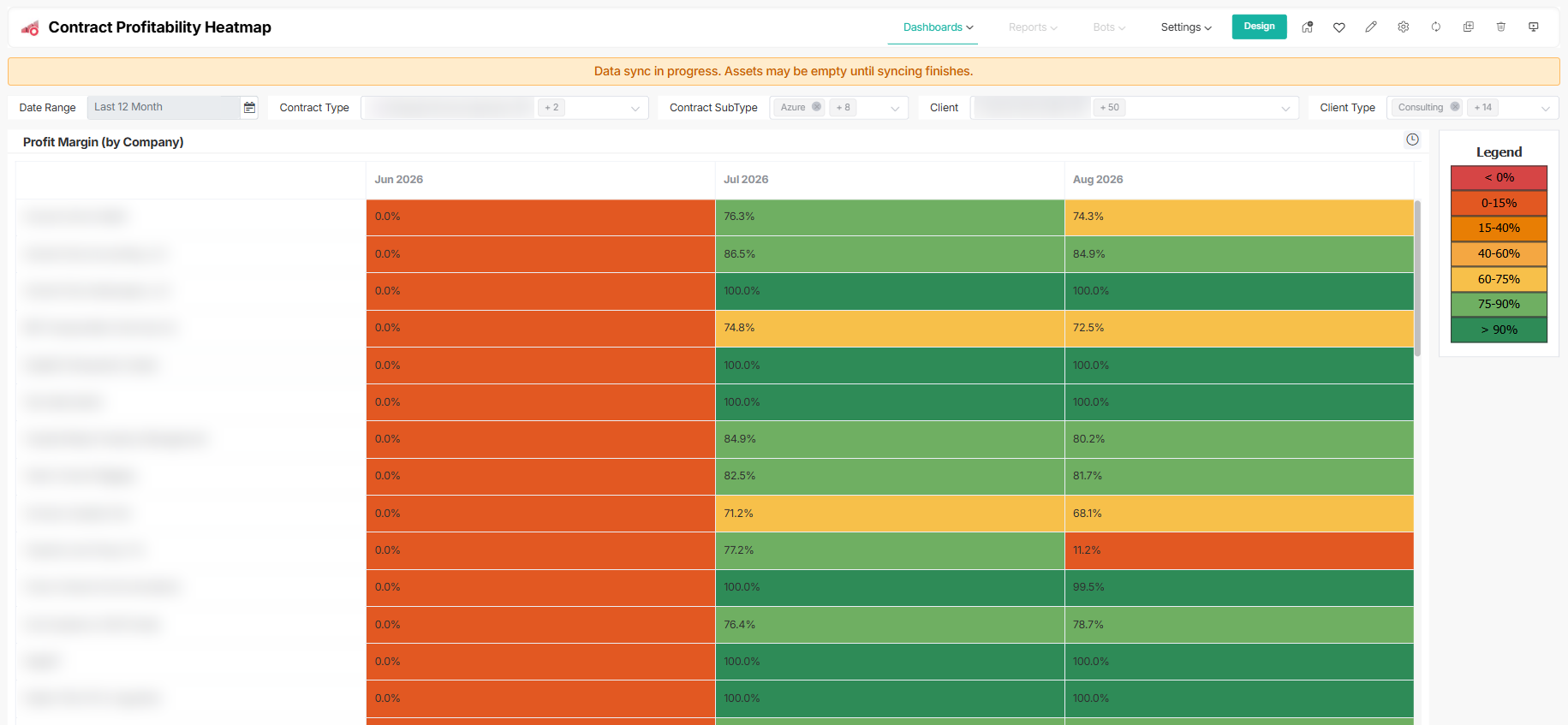
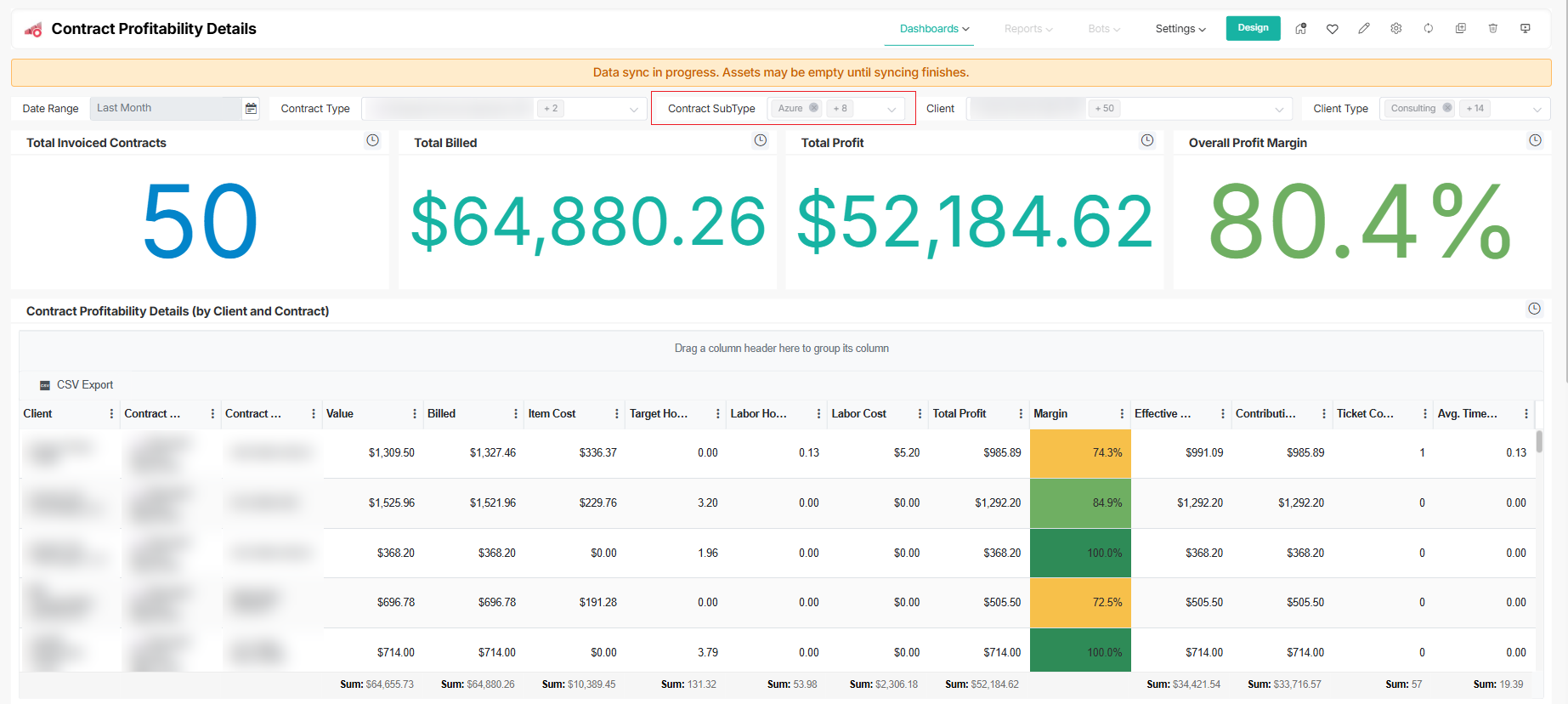
What's new: The HaloPSA Contract Profitability dashboards have a new Contract SubType multi-select slicer. Contract subtype also appears in the drill-through details, alongside contract type, client and date range.
Why it helps: Many MSPs use subtypes to separate contract tiers or offerings within one contract type. You can now compare profit margin, effective rate, contribution rate and labor hours at that level, without exporting data or building custom reports.
How to use it: On by default, no setup needed. Open any Contract Profitability dashboard and pick one or more subtypes in the Contract SubType slicer. Contracts without a subtype are grouped as "No Subtype". Requires the Financial role.
Dashboards:
High-level view of contract performance by type. Summary, profit margin, effective rate, contribution rate and labor hours trends can now be filtered by contract subtype.
Month-by-company heatmap of profit margin. Filter by subtype to see which clients on a given contract tier are trending above or below target.
Client- and contract-level breakdown of invoiced, billed, profit and margin, with invoice item and action drilldowns. Contract subtype is now a filter and a drilldown column.
Applies to: HaloPSA integration — Contract Profitability app
October 27, 2026